
School screens: a plan for reception, corridors and the staff room
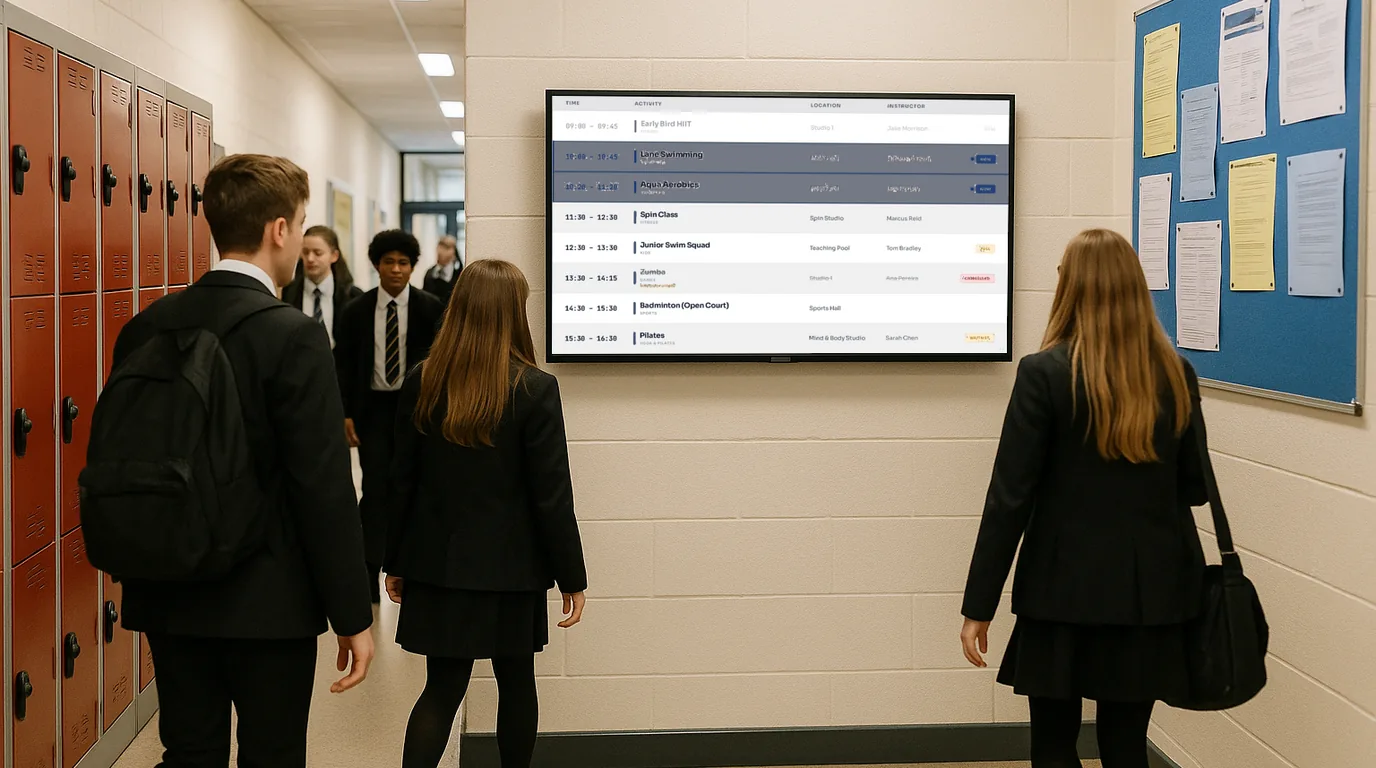
A school has three audiences for its screens: visitors at the front desk, pupils in the corridors and staff in the staff room. This guide takes each screen in turn, says what belongs on it and what to keep off it, and ends with the safeguarding and emergency rules to agree before the first screen goes up.
Decide who each screen is for
Most school screens fail because one TV tries to talk to everyone. A parent at reception does not need the Year 9 rugby results, and a pupil walking to science does not need the visitor sign-in rules. Give each screen one audience and write every Board for that audience.
Before you buy anything, walk the building at the start of the day, at change of lessons and at pick-up. Note where people stop, wait and look up. A screen earns its place where people pause for a few seconds; on a wall that pupils rush past, it shows nothing to anyone.
The plan, screen by screen
Reception: for visitors and parents
Visitors read this screen while they wait to sign in, so put it where they stand, beside or behind the desk, at standing eye height. Show:
- A welcome with the school name and today's date.
- Sign-in and lanyard rules, in one or two short lines.
- Your designated safeguarding leads, with photos, so a visitor knows who to speak to.
- The fire assembly point for visitors.
- The next few dates parents care about: INSET days, parents' evenings, the end of term.
Keep pupil content light here. Parents of other children, contractors and supply staff all stand at this desk.
Corridors: for pupils
Pupils read a corridor screen in the time it takes to walk past it. Put it at a junction where queues form, or outside the canteen or hall, and mount it high enough that the main line is visible over a crowd. Show one message per Board, in large type, and keep each Board on screen for long enough to read it twice.
Good corridor content is short and useful today: the clubs on after school, a reminder to bring PE kit, a countdown to the next trip or exam season, house points, and the weather at home time. Rotate no more than five or six Boards, or a pupil walks past three times before they see the one they need.
The staff room: for staff only
The staff room screen carries the information that must never reach a corridor: cover, duty changes, staff briefings, absence reminders and training dates. Treat it as a separate Channel with its own Playlist, and check that nothing on it names a pupil in a way you would not want a visitor to read if they walked in.
It is also the place to thank people: a new starter, a farewell, a birthday or a long-service date.
Safeguarding rules to agree before launch
- Never pair a pupil's full name with their photo unless you hold consent for that use. First name and initial, or no name, is safer.
- Check your photo consent list before any image of pupils goes on a screen visible from reception or the street.
- Keep medical, SEN and behaviour information off every screen, the staff room included.
- Do not show where a named pupil will be at a set time, for example a fixture list with names and venues on a public-facing screen.
- Name one person who approves photos before they go live.
Term dates without a reprint
Term dates change more often than a printed calendar suggests: a snow day, an extra INSET day, a polling-day closure. Enter the dates once and let the screens read them. Use a countdown for the big ones (the end of term, the school show, exam week) and a short list of upcoming events for the rest.
When a date changes, you change it in one place and every screen follows. That matters most at reception, where parents plan childcare around what they read.
Lockdown and evacuation messages
Your fire alarm and lockdown signal stay as they are. A screen adds one thing: written instructions where pupils and visitors can see them. A pupil between lessons with headphones on, or a visitor who does not know the signal, can read the screen.
Write the messages now, while nothing is happening. Keep each one to a heading and two lines: what is happening, and what to do. Agree who can trigger them and practise with a drill, so staff know how to end the alert and return the screens to normal afterwards.
Mistakes schools make with screens
- One Playlist on every screen, so staff notices appear in reception.
- Dense slides copied from assembly presentations, unreadable from more than a few steps away.
- No owner, so the summer fair is still on screen in October.
- A screen above a radiator or opposite a window, with glare that hides the text for half the day.
How NowBoard runs a school's screens
In NowBoard, your school is a Site and each audience gets its own Channel: Reception, Corridors and Staff Room. A Channel plays its own Playlist of Boards, and you can set the staff room Channel's visibility to staff only. Any number of TVs can play the same Channel, so three corridor screens show the same rotation.
- Reception: a Reception Welcome Board with Info Cards for sign-in and safety, and a Meet the Team Board for your safeguarding leads.
- Corridors: Announcements with a start date, an end date and a priority, so a notice for the cake sale removes itself on Saturday. Add a Countdown Board for the end of term and a Weather Board for home time.
- Staff room: Announcements for briefings, and a Celebrations Board fed from Dates for people (birthdays, anniversaries, welcomes and farewells).
- Display hours: each Channel sleeps outside the hours you set and wakes on its own each morning.
Emergency alerts are on the Professional plan and higher. You choose a level (Critical, Warning or Info) and a scope (the whole Organisation, one Site or one Channel), and the screens change at once. Presets include Fire Evacuation and Test / Drill, and you can write your own lockdown alert. Staff can trigger an alert from the NowBoard Operator App on their phone after a 3-second countdown, and Deactivate returns every screen to its Playlist.
For more on what schools show, see digital signage for schools and emergency screens. Plan costs are on the pricing page, and you can book a demo to walk through your own building's plan.
See it on your own screens
We show you NowBoard with the Boards for your kind of place. Or sign up free.