
Choosing a TV for digital signage: a buyer's guide
You can run digital signage on most TVs with an HDMI port, but the right screen for a reception desk is different from the right screen for a shop window. This guide covers size, brightness, orientation, mounting, power and network, then compares the ways to connect a TV to NowBoard.
Start with the TV you already have
Before you buy anything, put a Board on a TV you own and stand where your visitors will stand. If you can read the main line from the furthest point where people stop, the size is fine. If you have to walk closer, you need a bigger screen or bigger text. This test costs nothing and settles most size questions faster than a chart.
Size and viewing distance
The further away people stand, the bigger the screen needs to be. There is no single right number, because it depends on the text size of your Boards as much as on the screen. Use these as starting points and then test:
- Close reading (a door sign, a desk, a lift lobby where people wait next to it): a smaller screen works, since people stand a step or two away.
- Across a room (a reception, a café counter, a staff room): a mid-size TV, mounted where the whole room can see it.
- Across a hall or atrium (a sports hall, a large foyer): the biggest screen your wall and budget allow, or two screens in different places.
Two smaller screens at two decision points often beat one large screen that half the room cannot see.
Brightness and windows
A home TV is made for a living room with the curtains half closed. Point it at a street through a window, or hang it opposite a glass entrance, and daylight washes it out.
- For a screen facing out of a shop window, look for a high-brightness display made for windows. Manufacturers quote brightness in nits; compare the figure against a normal TV of the same size.
- For a screen inside, opposite a window, a normal TV with a matt finish handles glare better than a glossy one.
- Visit the spot in the morning and the afternoon. A wall that looks fine at 10am can catch direct sun at 3pm.
Consumer TV or commercial display
A consumer TV is designed for a few hours of viewing in the evening. A commercial display is designed to run all day, and usually costs more. Choose by how many hours a day the screen is on, and read the warranty: some consumer TV warranties do not cover business use. If a screen only runs during opening hours and sleeps overnight, a consumer TV may be enough.
Portrait or landscape
Most signage hangs landscape. Portrait suits a narrow wall beside a lift, a pillar or a door. Check two things before you turn a TV on its side: that the manufacturer allows portrait mounting, and that your content suits a tall screen. In NowBoard, you set each Channel to landscape or portrait, and several Board templates have a portrait version.
Mounting
- Check the TV's VESA mounting pattern and buy a bracket rated for its weight.
- Mount it where nobody walks into it and where a trolley or a door cannot knock it.
- Leave room behind or beside the screen for the player, and a way to reach it without taking the TV down.
- Plan the cable route. Visible cables down a wall look temporary; a trunking or a chased-in cable looks finished.
Power and network
Every screen needs a power socket at the mounting point, ideally two: one for the TV, one for the player. A wired network connection is the most reliable. If you use Wi-Fi, test the signal at the screen, not at the router. Avoid guest networks that make you sign in on a web page, such as many hotel networks; a screen player cannot complete that sign-in.
Which player to use
The player is the device that connects the TV to NowBoard. You pair it once: the screen shows a code, you enter it in NowBoard or scan it with your phone, and choose the Channel it plays.
| Player | What it is | Best for |
|---|---|---|
| NowBoard Web Player (Chrome) | Free. Runs in a Chrome tab on a PC or stick connected to the TV. | Trying NowBoard, or a spare PC you already have next to a screen. |
| NowBoard Player App (Android TV) | On Google Play, for Android TV and Google TV devices. Needs a Player Licence for each screen. | A TV or stick that already runs Android TV or Google TV. |
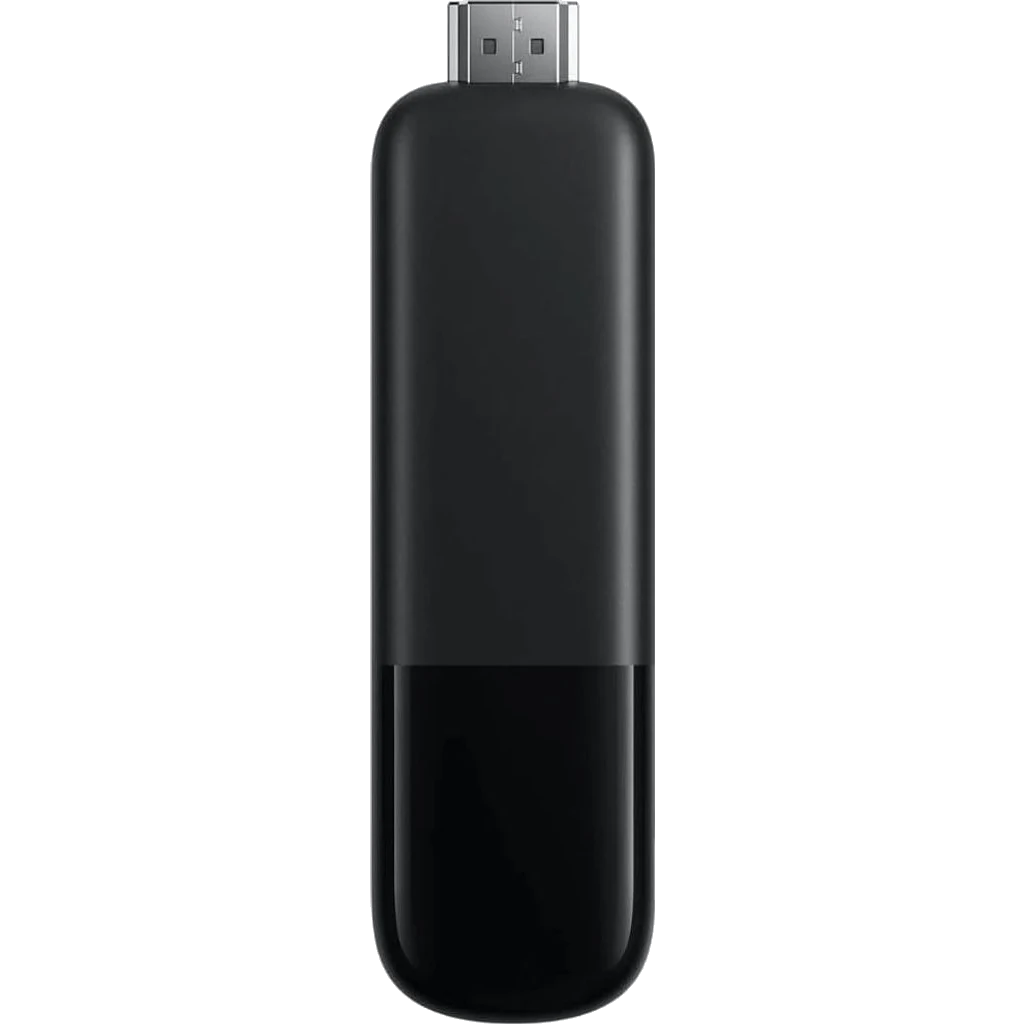
| NowBoard Player | Hardware sold by NowBoard, UK only. Plugs into the TV's HDMI port. | Screens that must run all day without anyone touching them. |
| NowBoard Player Pro | Hardware sold by NowBoard, UK only. Plugs into the TV's HDMI port. | The same jobs, plus Beam, which lets a visitor show a laptop tab on the screen (Professional plan and higher). |
Amazon Fire TV, Apple TV and Roku are not supported. The web browser built into a smart TV is not recommended for a screen that runs all day; use one of the players above. Outside the UK, you can build your own player on a Raspberry Pi with the free NowBoard Player software.
Hardware prices and the tested Android TV sticks are on the hardware page. Each connected TV also needs a Player Licence, from £10 a month per TV, ex VAT, on Starter, and the Free plan covers one TV. Full details are on the pricing page.
Before you buy
- Test a Board on a TV you own, from where your visitors stand.
- Check the hours per day, the brightness you need and the warranty terms.
- Confirm power, network and a bracket rated for the weight.
- Pick the player before the TV, so you know there is space and a socket for it.
For more on what makes a screen a sign, see digital signage screens, or book a demo and we can talk through the screens you have.
See it on your own screens
We show you NowBoard with the Boards for your kind of place. Or sign up free.