
Conference screens: the schedule, room changes and sponsor slots
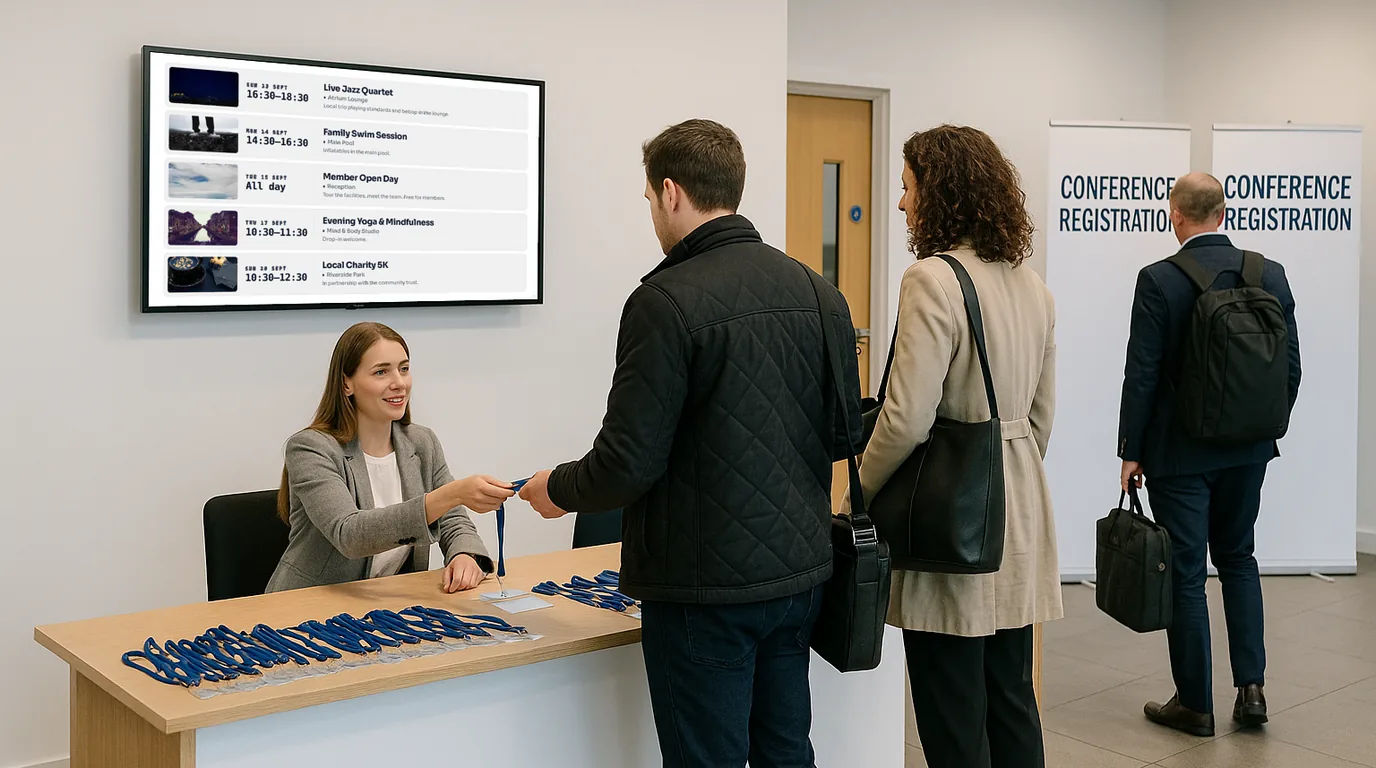
A conference programme starts to change the day you print it. This guide splits a conference's screens into three stages (the weeks before, the day itself and the pack-down) and names the NowBoard Boards and features that fit each one, from the session schedule to the sponsor slots.
Before the event: plan screens around delegate decisions
Put a screen at each place where a delegate has to choose where to go next. In most venues that means registration, the foot of the main stairs, the lift lobbies, the point where the corridor splits between breakout rooms, and the coffee station. Outside each session room, a smaller screen answers the question every late arrival has at the door: is this my session?
Height and reading distance
In a busy foyer, mount schedule screens high enough that someone at the back of a queue can read over heads, with the bottom edge at about 1.8 to 2 metres. At a junction where people walk past, keep each line short: session title, time and room. If delegates will read the screen from across a hall, show fewer sessions in bigger type and rotate between pages.
Load the programme once, as Events
Enter each session as an Event with a start time, an end time, a venue and a room. Give each track its own category. Then set the Events block on your schedule Board to show Today. You can load all three days of a conference before you arrive, and each morning the Board shows that day's sessions without anyone switching it over. Turn on "Highlight the event that is on now" so the running session stands out.
For a multi-track event, make one Board per track and use the Board's event filter to show one category. If your team keeps the programme in Google Calendar or Microsoft 365, add the calendar's iCal address as a calendar feed into an Events list. NowBoard syncs it about every 15 minutes.
Pick the Boards for each place
- Registration: a Schedule Board with the full day, plus a Welcome Board with the event name and a QR Code Board that joins the guest Wi-Fi.
- Junctions and stairs: a Now & Next Board, so delegates see the current session and the next one with its room.
- Main hall doors: a Countdown Board to the opening keynote while people find their seats.
- Coffee queue: sponsor artwork in a Slideshow Board, between the schedule pages.
Decide how sponsors get screen time
You have two routes. For sponsors who already paid as part of a package, upload their artwork to Media and add a Slideshow Board to the Playlist. You set the seconds each Board shows, so a headline sponsor can have a longer slot or appear twice in the loop.
To sell slots to local businesses or late sponsors, create an Ad Space and add an Ad Board slot to the Channel's Playlist. Share the public booking page. The advertiser picks dates, uploads an image or video and enters their details. You approve the booking, NowBoard emails them a payment link, and the ad plays only after they pay. You receive the money through Stripe, less a commission that depends on your plan (13% on Professional, for example). Ad Spaces are on every plan, including Free.
On the day: keep every screen correct
Most changes on the day are small: a room swap, a late start, a lunch that moves floor. Edit the Event from your phone browser and every Board that shows it updates within seconds. You do not need to touch the Board or the Playlist.
For example
A projector fails in Hall B at 13:40, and the 14:00 panel has to move to Room 4. Your coordinator opens the Event on their phone, changes the room and saves. The Now & Next screens at the stairs show Room 4 before delegates leave the previous session.
For a notice that is not tied to one session, post an Announcement from the NowBoard Operator App. Set the priority to Urgent and give it a start and end time, so "Lunch is now on Level 2" goes off the screens when lunch ends.
Takeover for announcements everyone must see
On Professional and higher plans, Takeover sends one Board to all Channels or to the ones you select. Use a Quick Board for an instant message such as "Closing keynote starts in Hall A in 10 minutes". The Takeover stays until you end it, and then each Channel goes back to its own Playlist. You can also schedule a Takeover in advance with a start and an end, for example a sponsor's product launch at 16:00 on day two.
Emergency alerts
Also on Professional and higher, an emergency alert replaces the content on every screen in the scope you choose: the whole Organisation, one Site or one Channel. Make sure your duty manager can trigger the Fire Evacuation preset from the Operator App. A 3-second countdown gives them time to cancel a mistaken tap, and Deactivate returns the screens to normal.
After the event: pack down and reuse
- Set the Ad Space to Inactive so nobody books a slot for an event that has finished. It keeps its booking history.
- Duplicate your schedule and welcome Boards with "Same design" and rename the copies for next year. The originals stay as a record.
- Unplug the Players. You can assign a Player to a different Channel at any time without pairing it again, so the same devices can go to your next venue.
- Write down the questions delegates asked at the information desk. Each one is a line for next year's Welcome Board.
Where to start
The events sector page shows the Boards organisers use most, and the event signage page covers schedule screens in more detail. Plans are per TV per month, from a Free plan for one TV up to Professional at £20 a month per TV, ex VAT; see pricing. For a one-off event, ask us for a quote when you book a demo.
See it on your own screens
We show you NowBoard with the Boards for your kind of place. Or sign up free.