
Event signage checklist: from the venue visit to packing down
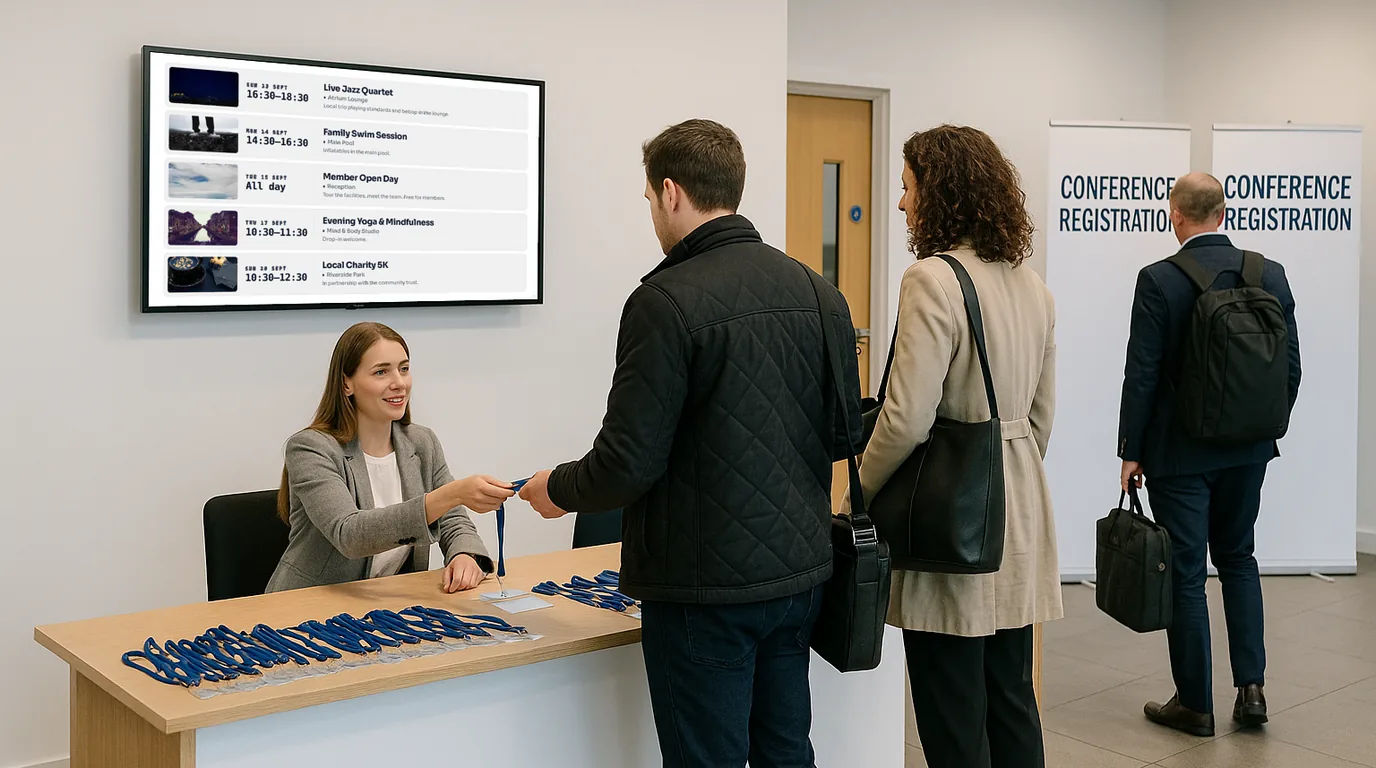
Screens at an event fail for dull reasons: no socket behind the stand, a Wi-Fi network that wants a login page, or nobody on site who can change the content. These checklists cover each stage, from the venue visit to packing down, so you can tick them off with the venue manager and your crew.
Weeks before: content
Get the content right while you still have time to check it with the client. Every item on this list is something you can do from a desk.
Content checklist
- The programme is entered with start time, end time and room for each session.
- Each screen location has its own job: schedule at registration, now and next at junctions, welcome at the door.
- Text is large enough to read from where people will stand. Fewer lines beat smaller type.
- The event name, logo and colours are on every Board.
- A Wi-Fi QR code is on the welcome screen, with the network name and password in large text beside it.
- Sponsor artwork is in landscape or portrait to match each screen, at the right size.
- The client or organiser has checked the spelling of every speaker and sponsor name.
The venue visit: power, network and mounting
Walk the route a delegate takes, from the car park to the furthest breakout room, with the venue's operations contact. Take photos of each wall or stand position.
Venue checklist
- Each screen position has power for the TV and the Player, without a cable across a walkway.
- You know which Wi-Fi network the screens will use, and you have its password in writing.
- The screen network does not need a sign-in web page. Hotel and guest networks often do, and a Player cannot use them. Ask for a staff network or a network cable.
- The venue knows how many devices you will connect, so the network has room for them when delegates arrive with phones and laptops.
- Floor stands are weighted, and wall screens sit high enough to read over a queue.
- No screen faces a window that puts the afternoon sun on the glass.
- You know who at the venue can turn a TV on if a power strip gets switched off overnight.
The day before: pairing and testing
Pair every screen the day before doors open. A screen that shows a pairing code at 8am is a screen your crew will be fixing while delegates register.
Pairing and test checklist
- Each screen shows a pairing code. Scan its QR code with your phone and select the Channel it must play.
- Each Player has a clear name, such as "Level 1 lifts", so you can find it in the list later.
- You have walked the building and checked each screen shows the right Channel.
- You have changed one session time from your phone and watched the screens update.
- Display hours on each Channel match the venue's opening times, so screens sleep overnight and wake before doors.
- You have a spare Player, a spare HDMI cable and a power strip in the crew box.
If you lose track of which screen is which, use Identify on the Players page. It shows the Player's name and Channel on that screen for thirty seconds.
On the day: who has phone access
Decide before doors open who can change what. A delegate's question at the information desk often turns into a change on the screens, and the person at the desk needs to be able to make it.
Access checklist
- Each person who will make changes has accepted their invite and signed in on their own phone.
- They have added the NowBoard Operator App to their home screen and selected the Channel they work from.
- Each person has the role they need. A Takeover from the phone needs the Manager role or higher.
- One named person owns the schedule, so two people do not edit the same session at once.
- Everyone knows how to post an Announcement with an end time, so a notice goes off the screens when it stops being true.
Emergency messages
Agree this part with the venue's duty manager, because their evacuation procedure comes first. Emergency alerts and Takeover need the Professional plan or higher.
Emergency checklist
- An admin has set up the alert templates you need, such as Fire Evacuation and Critical Alert, in Settings. The phone app shows only templates that exist.
- The duty manager knows the alert starts after a 3-second countdown, and that Cancel stops it in that time.
- They know how to choose the scope: one Channel, the Site or the whole Organisation.
- They know that Deactivate (or Clear in the phone app) puts the screens back to normal.
- You have run the Test / Drill preset once, with the venue's agreement, before delegates arrive.
Mistakes that cost the most time on the day
- Using a smart TV's built-in browser for an all-day screen. Use a NowBoard Player or the NowBoard Player App on Android TV instead.
- Leaving the first session as the only one entered, so the screens are empty after 11am.
- Putting the full programme on a screen people pass at walking pace.
- Giving the only phone login to someone who is on stage all afternoon.
Packing down
Pack-down checklist
- End any active Takeover and check no alert is live.
- Set any Ad Space for the event to Inactive.
- Count the Players and cables back into the crew box against your list.
- Leave the Players paired. At the next venue you assign each one to a new Channel without pairing it again.
- Duplicate the Boards that worked, ready for the next event.
Running this checklist with NowBoard
NowBoard runs each screen from a Channel with its own Playlist of Boards, and you change all of it from a phone or a laptop. The event signage page shows the schedule, Now & Next and Countdown Boards, and the events sector page covers sponsor boards and multi-day events. For hardware options, see hardware, and for plans, see pricing. For a one-off event, ask us for a quote when you book a demo.
See it on your own screens
We show you NowBoard with the Boards for your kind of place. Or sign up free.