
Estate agent window display ideas for a screen in the window
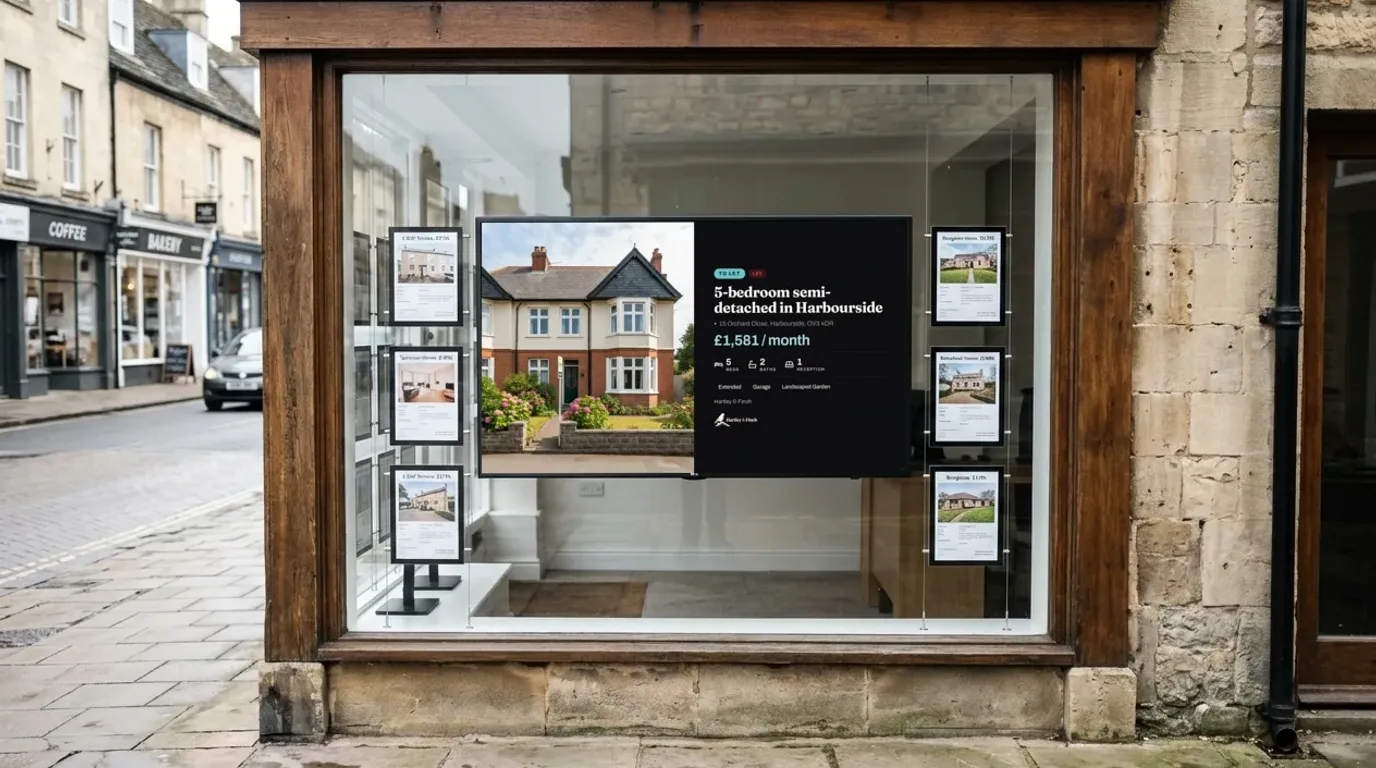
A screen in an estate agent window does the job of a wall of printed cards, and it changes when your listings change. This article gives window display ideas for agents who are moving from cards or LED pockets to a screen: what to show, how to make it readable from the pavement, and how to keep every branch current without a trip into the window.
Start with the person on the pavement
Most people read an estate agent window display in passing. They walk by on the way to work, or they stop for a minute on a Sunday when the branch is closed. They look for three things: the price, the number of bedrooms and a photo that tells them if the home is worth a closer look. Everything else is secondary.
So the first idea is the simplest: one home per slide, with a large photo, the price and the beds and baths in big type. A grid of twelve small cards works on paper because people can step closer. On a screen behind glass, a few homes shown large, one after another, are easier to read.
Ten window display ideas
- Newest homes first. People who pass every day see something new each time. In NowBoard, a listing carries a "New" badge for 14 days by default.
- A property of the week. Star one listing and the Board shows it as Property of the Week. Use it for the home you most want to move, or the one with the best photos.
- Sold and let, for a few days. A home marked Sold STC or Let shows that the branch sells in this street. Keep them on for a short time, then delete the row or hide the listing.
- Price changes the same day. When a vendor agrees a new price, change the row in your sheet. The window shows the new price at the next update, with no reprint.
- A valuation QR code. Add a QR Code slide that opens your valuation form. It works at 9pm, when the people most likely to stop have time to look.
- The team. A Meet the Team slide with names and photos makes the branch feel local. Put it between listings, not in place of them.
- Open house dates. Add each open house as an Event, and show this week's viewings on a slide or on the reception screen.
- Lettings and sales on separate screens. If the window has room for two screens, give one to sales and one to lettings, so each audience finds its homes quickly.
- Portrait for narrow windows. A screen turned on its side fits a narrow window and suits a tall photo of a house front.
- Switch off at a set time. Set display hours on the window Channel, so the screen runs into the evening and then switches off.
For example
You could run a landscape screen with one home per slide, a Property of the Week every fifth slide, and a valuation QR code between them. When a sale is agreed on Tuesday, the negotiator changes the status in the sheet, and the window shows Sold STC that afternoon.
Choosing the screen for a window
The biggest difference between a window and an office wall is daylight. A home TV that faces the street through glass can look dim in the afternoon sun. Most home TVs give 300 to 500 nits of brightness. Screens made for shop windows are usually 2,500 nits or more, which keeps the picture readable in direct sun.
If your window faces north, sits in shade or matters most in the evening, a home TV can do the job. For a sunny window, budget for a window screen. Either way, NowBoard works with any screen that has an HDMI port: plug a NowBoard Player into it, pair it with the QR code on the screen, and it shows your Board.
If the connection drops the screen keeps showing the last Board it loaded.
Keeping every branch current from one sheet
The work in a window display is keeping it true. In NowBoard, listings live in Property listings, and they can get there in three ways:
- From a Google Sheet. Publish the sheet as CSV and add it as a Data Source. NowBoard reads it on a schedule and fills your listings. Add a row and the home appears. Delete the row and it leaves the window.
- From a CSV file or an API. If your software can export listings to a CSV file on the web, or you have an API, a Data Source reads that in the same way.
- Typed in. Add a listing from your phone, with the price, beds, baths, EPC rating, address and photos.
NowBoard does not connect to property software directly, so the sheet or file is the link between your listings and the window. For a group, keep one sheet for every branch, so every window shows the same homes. Or give each branch its own tab with its own Data Source, so each window shows its own homes.
When one listing needs a change that the sheet must not overwrite, add an override in NowBoard. You can feature a home, hide it, change its headline or add a badge such as Reduced. The sheet stays as it is.
A checklist for the first week
- Pick the listing layout: one large home, a photo gallery, or a grid of three.
- Add your logo and colours to the Board.
- Check the window from across the street at midday and after dark.
- Make sure that the newest homes come first, and decide how long sold homes stay on.
- Add a valuation QR code and test it with your own phone.
Cost and next steps
Listing Boards and Data Sources need Starter or above. The Free plan covers one TV with no card and no expiry, for notices and offers, but it does not include the property listing templates. Starter costs £10 a month per TV, ex VAT, and includes 3 Data Sources. Professional, at £20 a month per TV, ex VAT, includes 15. The pricing page has the details. See estate agent window displays for the Boards, or book a demo to plan screens for a group of branches.
See it on your own screens
We show you NowBoard with the Boards for your kind of place. Or sign up free.