
Gym class timetable screens: set-up, cancellations and challenges
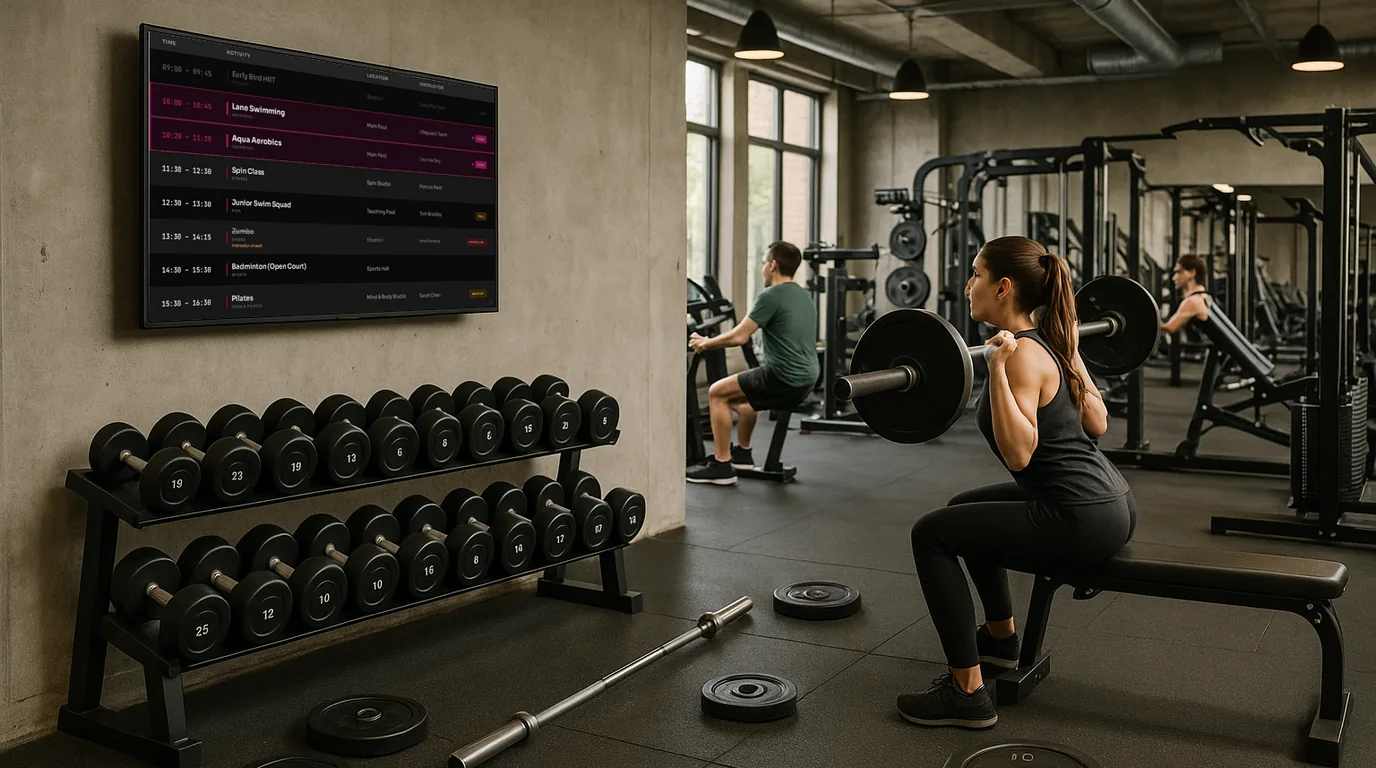
A gym timetable screen earns its place when members trust it. This guide covers where to mount each screen, how to set up the timetable so it moves on through the day by itself, and how the front desk cancels or fills a class from a phone. It finishes with a member challenge on a Leaderboard.
Step 1: Decide where each screen goes
Most gyms need two kinds of screen. One sits in the lobby or by the turnstile and answers "what's on today?". The other sits by a studio door and answers "is my class in here, and is it still on?".
- Lobby or reception: landscape, mounted high enough that the queue at the desk does not hide it. Members read it while they wait to scan in, so it can carry the full day plus one or two notices.
- Studio door: a portrait screen fits the narrow wall beside most doors. Put its centre near eye level, around 1.5 m, so a member with a mat under one arm can read the next class without stepping back.
- Gym floor: one screen in view of the free weights suits Now & Next or a challenge table. Members read it from across the room between sets, so keep the text large and the Board simple.
Before you drill, stand where members queue and look at the wall. Window glare and pillars show up from there. You miss both from the doorway where you planned the bracket.
Step 2: Enter the timetable once
In NowBoard, your class list lives under Content as a Timetable. Each class is an entry with a start time, end time, title, room and instructor, and a repeat rule: Daily, Weekdays, Specific Days or One-off. If the week already sits in a spreadsheet, Import CSV reads it. The file needs a time and a title on each row; room, person, category and schedule columns are optional.
Fill in the room and the instructor even if your paper timetable left them off. Timetables keep rooms and people, so a gym with two studios can give each studio door its own classes. If your booking system publishes a calendar (iCal) address, a Calendar feed can copy its events into the Timetable instead, and NowBoard syncs it about every 15 minutes.
Step 3: Put the timetable on a Board
Pick a Board template such as Timetable or Now & Next, link your Timetable on the Board's Content tab, and add the Board to the Channel's Playlist. The Timetable block shows today's classes that are on now or start later. A finished class stays on the list for an hour (change this with Keep ended sessions for), and after the last class the block shows "No further sessions".
Watch the busy days. If a Saturday has more classes than the space can hold, the block drops the last ones. You can fix that with a portrait screen, a Board with more room for the list, or a time-of-day slot on the Channel that swaps in an afternoon Playlist from 12:00.
Step 4: Handle cancellations from the gym floor
Instructors call in sick at 6am, not at 3pm when the manager is at a desk. The NowBoard Operator App is a web app for staff phones; add it to the home screen and it opens like any other app. Its Today page shows the day's schedule for the Channel you pick.
Find the class
Open Today and check the Channel name at the top. Tap it to switch Channels if you run more than one.
Change its status
Tap the three-dot menu on the row and choose Cancel today, Mark Full, Mark Waitlist or Reset status. Add a short note, for example "Try the 19:30 Spin instead".
Add cover or an extra class
Tap the round plus button to add a class for today only. The app tags it One-off, and tomorrow's timetable stays as it was.
A cancelled class shows as Cancelled even if someone had also marked it Full. If the gym Wi-Fi drops while you are on the app, a red banner appears and you can read the schedule but not change it until the connection returns.
Step 5: Add member notices without clutter
Use Announcements for the short-lived things: the sauna closed on Thursday, a new class launching next month, the bank holiday hours. Give each one an End date and it leaves the screens on that date with nobody touching it. Show from and Show until limit a notice to part of the day, so an "Induction at 18:00" reminder can run in the afternoon only. Staff can post the same notices from the Announcements tab of the Operator App.
Keep the lobby rotation short. Two or three Boards, each on screen long enough to read, beat eight Boards that flick past before a member finds their class.
Step 6: Run a challenge on a Leaderboard
A challenge gives members a reason to look at the gym floor screen. Create a Ranked list under Content, choose what the scores are (Number, Money, Time in seconds, or Text) and the order. A rowing distance challenge sorts highest first; a 2 km row time sorts lowest first. Link the list to a Leaderboard or Podium Board, which marks the top three.
Your coaches may already log results in a Google Sheet. A Data Source can read that sheet on a schedule and fill the Ranked list, so nobody types the scores twice.
Mistakes to avoid
- Leaving last month's challenge on screen. Archive the Ranked list when the challenge ends.
- Showing every studio's classes on every studio door. Members want the room in front of them.
- Running the screens all night. Set display hours on each Channel so it sleeps when you close and wakes before the first class.
- Deleting a cancelled class from the Timetable. Members then see a gap and assume they misread it. Mark it Cancelled with a note instead.
What it costs to start
Each connected TV needs a Player Licence. The Free plan covers one TV, so you can trial the studio door first. Paid plans start at £10 a month per TV, ex VAT; the full list is on the pricing page, and the players are on the hardware page. For gym Board examples, see digital signage for gyms and class timetable screens. If you would like to see the Operator App on a phone first, book a demo.
See it on your own screens
We show you NowBoard with the Boards for your kind of place. Or sign up free.