
How to turn a PDF class timetable into a live one on a TV
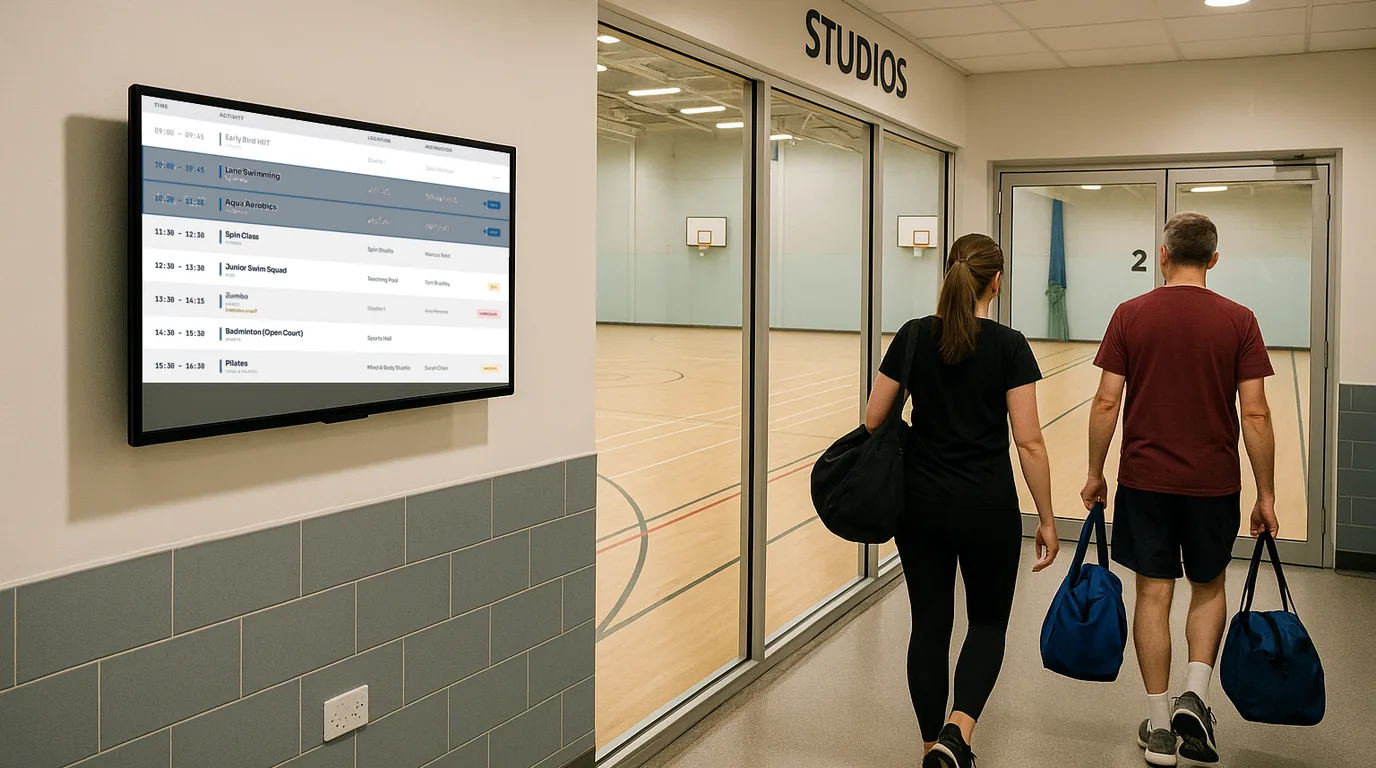
Most class timetables start life as a PDF made for printing. This step-by-step guide turns that PDF into a live timetable on a TV: one list of classes you can import, check, publish and change from a phone, with cancelled and full classes marked as the day goes on.
Before you start
You need three things: the current timetable (PDF, Word file or spreadsheet), a NowBoard account, and one TV with a player paired to a Channel. If the TV is not set up yet, the hardware page covers the players and the how it works page covers the set-up. The steps below are about the timetable itself.
Turn the PDF into rows
A printed timetable is a grid: days across the top, times down the side. NowBoard wants a list, one row per class. Open a spreadsheet and give each class a row with its start time, end time, title, room and instructor. A class that runs on Monday and Wednesday at the same time is still one row; the schedule columns handle the days.
Write times as HH:MM in 24-hour format (18:30, not 6.30pm). Spell room and instructor names the same way on every row, because each new spelling becomes a new room or person.
Match the sample file
In NowBoard, go to Content, open Timetables, create a new Timetable and give it a name. Click Import CSV, then Download sample CSV. Copy your rows into the sample's columns. Only time and title are required. The optional columns are endTime, room, person, category, subcategory, scheduleType, daysOfWeek, specificDate, startDate and endDate. For scheduleType, use daily, weekdays, specific-days or once.
Import, then save
Choose Add to existing entries or Replace all entries, then import the file. NowBoard skips any row with a missing time or title, or a time it cannot read, and tells you the reason, so fix those rows and import again. Rooms, people and categories that do not exist yet are created for you. Click Save at the end: imported entries are not kept until you do.
Check it in Day and Week view
Switch between Day and Week, and between the Calendar layout (a timeline) and the Stacked layout (a list). Use Colour by in the filter panel to colour the blocks by room or instructor, which makes a double-booked studio easy to spot. In the Calendar layout you can drag a class to move it, drag its bottom edge to change its length, or click it to edit.
Publish the Timetable
A Timetable has three statuses: Draft, Published and Archived. Set it to Published when you are happy with it. Set last term's version to Archived when the new one goes live. NowBoard keeps an archived Timetable for reference.
Show it on a Board
Create a Board from a timetable template, such as Timetable, Schedule or Now & Next, and link your Timetable on its Content tab. In the Timetable block you can turn Show place and instructor on or off, use Show only to pick certain categories, and set Row spacing. The block lists today's classes that are on now or start later, keeps a finished class for an hour (Keep ended sessions for changes this), and shows "No further sessions" after the last one.
Add the Board to the Channel
Open the Channel, go to its Playlist tab and drag the Board in. Set its duration in seconds on its card. If the timetable is the only thing on that screen, it can be the only Board in the Playlist.
Changing the timetable after launch
Real timetables change weekly. NowBoard keeps a repeating class as a series, so a one-week change does not damage the rest.
- Move one week's class: drag that occurrence. NowBoard makes a one-off exception and the series stays as it was.
- Drop a class for good: delete it and choose This date only, This and following, or Entire series.
- Cancelled, full or waitlist: each entry has a Class status of Cancelled, Full or Waitlist, plus a Status note for any text, such as "Room change: Studio 2". Use Save this date only when you edit one occurrence.
- From a phone: front-desk staff use the Today page in the NowBoard Operator App to Cancel today, Mark Full, Mark Waitlist or add a one-off class for today.
If your classes already live in Google Calendar or Microsoft 365, you can skip the CSV. A Calendar feed copies events from a published iCal address into the Timetable about every 15 minutes, including repeats for the next 14 days. Make your changes in the calendar, and the next sync carries them across.
Where PDF timetables go wrong on a TV
- Showing the whole week in small type. A screen by a door works best with today, large enough to read from a step away.
- Keeping a PDF on the website that nobody updates. Put a QR Code Board in the rotation that links to your live booking page instead.
- Leaving the Timetable in Draft and wondering why the old one still shows.
- Typing "Studio 1" in one row and "Studio One" in the next.
Where this fits
The same Timetable can feed the reception screen, a studio door and the pool entrance at once, so you maintain one list. See class timetable screens for more Board examples and gym digital signage for a full gym setup. The Free plan runs one TV; paid plans start at £10 a month per TV, ex VAT, as listed on the pricing page. If you want help turning your own PDF into rows, book a demo and bring the file.
See it on your own screens
We show you NowBoard with the Boards for your kind of place. Or sign up free.