
Hospital waiting area screens: what to show and who updates them
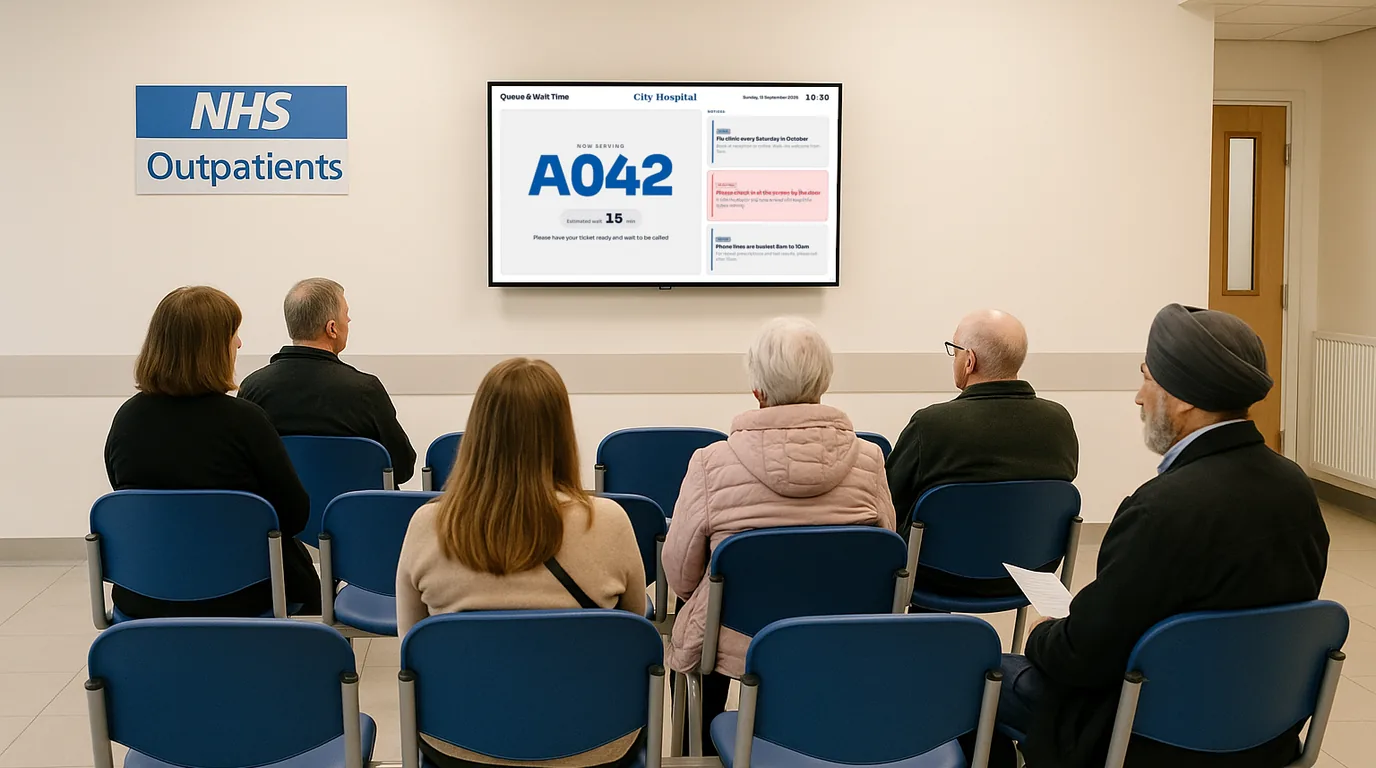
Screens in hospital and clinic waiting areas work when each one has a clear job and a named owner. This guide covers what to show in waiting rooms, corridors and at ward entrances, what to keep off the screen, how to make it readable for every patient, and who should update which screen.
Start with the question each area asks
Patients and visitors in different parts of a hospital need different things. Plan each screen around the question people ask most in that spot.
- Main entrance: where do I go? Department names, floors, temporary entrances, the pharmacy and the restaurant hours.
- Outpatient waiting areas: how long will I wait, and what do I do if I feel worse? The running delay, who to tell, and the notices patients need while they sit.
- Corridors and lift lobbies: am I going the right way? Short directions, and the closures that change a route this week.
- Ward entrances: can I visit now? Visiting hours, protected mealtimes, hand hygiene, and the name of the nurse in charge today.
Give each screen one of these jobs. If a corridor screen also carries the outpatient delay, patients walking past have to wait through a message that is not for them.
Content worth the space
- Clinic and visiting hours, with the changes for bank holidays and outbreaks.
- A running delay, in plain words: "Clinic 4 is running about 30 minutes late".
- Who to tell if symptoms change, and where to find them.
- Practical information: parking, pharmacy collection times, the hospital Wi-Fi, a quiet room or a chapel.
- Health campaigns your trust has approved, such as flu vaccination or screening reminders.
- Directions that change, such as a closed lift or a clinic that has moved floors this month.
Keep it off the screen
Keep these off waiting area screens
- Patient names. Use a ticket number, a room or a clinic. A name on a wall is personal data in a public place.
- Clinical advice nobody has signed off. Use the same approval route you use for a waiting room poster.
- Daytime television with sound. It competes with staff calling patients and adds noise for people who are anxious or unwell.
- Fast-moving content. A patient who looks up for five seconds between calls should be able to read a whole message.
- Old notices. A finished campaign or a closure that has ended tells patients the screen is not worth reading.
Make it accessible
A waiting room includes people with low vision, people whose first language is not English, people who are distressed and people reading from a wheelchair. Design for all of them.
- Size and distance. Test every Board from the back row of seats. Main text should be readable from there without glasses.
- Contrast. Dark text on a light background or the reverse. No text over photos.
- Colour plus words. If a status is red, also write "Closed". Some patients cannot tell red from green.
- Short lines. One message per Board, in short sentences and everyday words. "Blood tests: Floor 2, turn left" beats a paragraph.
- Time to read. Leave text-heavy Boards on screen for 15 to 20 seconds and use a fade between them, not a slide.
- Height. In seated waiting areas, mount screens lower than in corridors, where people read them standing and walking.
- Video. If a video plays, make sure it makes sense with the sound off, with captions burnt in.
Who owns which screen
A hospital screen goes stale when nobody owns it. Give each screen a named team and a routine before it goes on the wall.
| Screen | Main job | Owner | Updated |
|---|---|---|---|
| Main entrance | Directions, temporary entrances, hospital-wide notices | Facilities or estates | When a route or entrance changes; checked weekly |
| Outpatient waiting area | Running delay, who to tell, clinic notices | Clinic reception | Each session, and when the delay changes |
| Corridor and lift lobby | Directions and closures on that route | Facilities | When a closure starts and ends |
| Ward entrance | Visiting hours, nurse in charge, hand hygiene | Ward manager or ward clerk | Each shift for the duty name; visiting hours when policy changes |
| All screens | Approved health campaigns, urgent alerts | Communications team | Monthly for campaigns; at once for alerts |
Write the owner's name on the commissioning form for each screen. When that person changes jobs, hand the screen over like any other duty.
How NowBoard does it
In NowBoard, each building is a Site, and each area is a Channel with its own Playlist of Boards. A Channel can play on as many TVs as you need, so three screens in one waiting room show the same thing.
- Visiting and clinic hours: Opening Times hold the weekly pattern and dated exceptions. The Waiting and Visiting Hours template shows them as visiting sessions.
- Notices: Announcements carry a priority (Normal, High or Urgent) and an end date, so a notice leaves the screen on the day it expires.
- Running delays: a Live figures set holds a number such as "Estimated wait: 30 min" and shows when it last changed. Reception updates it from a phone, or a Data Source fills it from a Google Sheet. The Queue / Wait Time template shows a now-serving number and the estimated wait beside the latest notices.
- Nurse in charge: the Meet the Team template shows a People list with photo, name and role.
- Urgent alerts: on Professional and higher, emergency alerts replace what every screen in the scope shows, for one Channel, one Site or the whole organisation.
Staff update content from the NowBoard Operator App on their phones or from any browser. NowBoard does not connect to patient records, and your team writes everything on screen. The hospitals and clinics page shows the Boards, and queue and wait time screens covers waiting rooms in more detail. See pricing for each plan, or book a demo to go through your building and who should own which screen.
See it on your own screens
We show you NowBoard with the Boards for your kind of place. Or sign up free.