
Digital wayfinding signs: where to put them and what to show
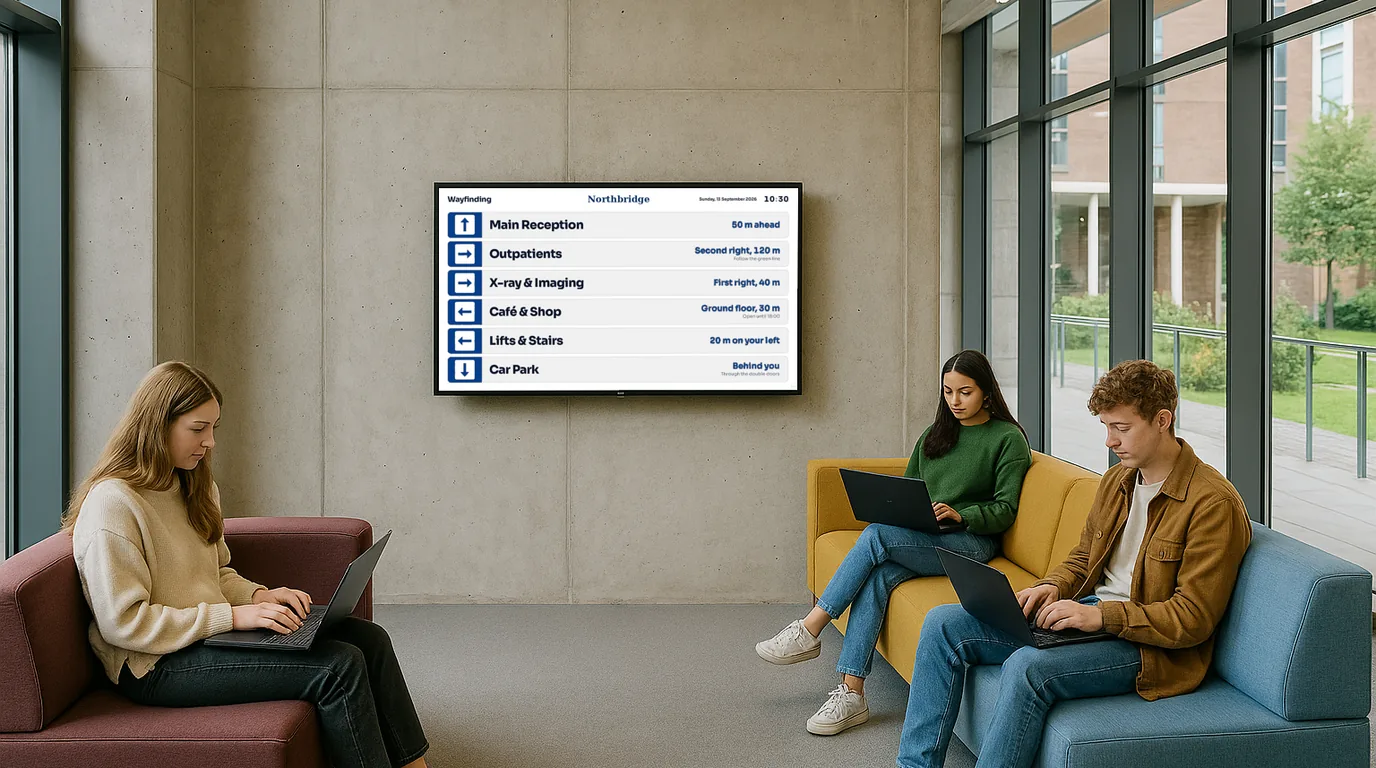
A wayfinding screen helps only if it stands where someone has to choose a direction and tells them which way to turn from that exact spot. This guide covers how to find those spots, how to write directions that work, and what to show when a room or a route changes.
Find the decision points
Walk your building as a first-time visitor, from the car park or the bus stop to the three places people ask for most. Each time you have to stop and choose (left or right, stairs or lift, this corridor or that one) you have found a decision point. Mark it on a floor plan.
Most buildings have fewer decision points than you expect. A typical list:
- The main entrance, inside the doors, where people stop to get their bearings.
- The lift lobby on each floor, facing the lift doors as they open.
- The junction where a main corridor splits.
- The point where a public route meets a staff-only area, so visitors know to turn back.
Put screens at decision points only. A screen halfway down a straight corridor tells people something they already know.
Write directions from where the screen stands
An arrow on a screen points the way it points relative to the wall it hangs on. "Radiology: left" is right on the screen by the lift and wrong on the screen across the lobby. Each screen needs its own directions, written by someone standing in front of it.
Rules for directions that work
- Stand at the screen's position and face it before you write a single arrow.
- Use the names on the doors and the signs. If the door says "Outpatients B", do not write "Clinic 2".
- Give one step at a time: "Take the lift to floor 2", then let the next screen take over.
- Pair the arrow with a landmark people can see: "past the café", "through the double doors".
- Show the floor number in large type. It is the first thing people look for.
Keep each screen short
People read a wayfinding screen while they walk. Give them five to eight destinations per screen, the ones most visitors want from that spot, in the order they appear along the route. Put the full directory at the entrance and a shorter list at each floor.
Use a rotation with care. If the destination someone needs is on the third Board in a loop, they wait or give up. Keep the directions on a screen of their own, or keep them on screen for most of the loop.
Height, size and sightlines
Mount entrance screens high enough to read over the heads of a queue, and lift lobby screens at standing eye level, since people read them while they wait. Test the text size from the furthest point where someone will stop, not from the doorway. If you have to step closer to read the floor number, the type is too small.
Watch for glass. An entrance screen opposite a glass door picks up daylight reflections for part of the day. Visit the spot at different times before you fix the bracket.
Show what changes
A printed sign is right on the day you hang it. A screen earns its cost when things move: a clinic moves floors for a month, a lift is out of service, an entrance closes for building work, a conference takes over the ground floor for two days. Plan for those changes now.
- Decide who updates each screen when a route changes, and how quickly.
- Write the "lift out of service, use the stairs by the café" message in advance.
- Put an end date on temporary directions, so they leave the screen when the work ends.
For example
For example, you could show a floor plan at the main entrance with numbered pins for each department, a list of today's room bookings by the lift on each floor, and a status chip beside the lift that turns to "out of order" when it breaks down. Three screens, each with one job.
How NowBoard handles wayfinding today
A dedicated Wayfinding Board template is coming. Until it arrives, you can build wayfinding from content types that are live now.
- One Channel per decision point. Because directions depend on where the screen stands, give each spot its own Channel with its own Board. Screens that face the same way at the same spot can share a Channel.
- Places holds a list of destinations, each with a status (open, closed, busy, out of order or quiet), a location line such as "Lower ground", and a pin on a floor plan image you upload.
- Info Cards include a Directions kind for short "how to get there" cards.
- Maps shows streets with your own pins, for car parks, entrances and the shuttle bus stop on a larger site.
- Room and Studio Schedules shows today's bookings for named rooms, typed in or synced from a Google or Microsoft 365 calendar.
- Announcements with an end date carry temporary route changes, and leave the screen on the date you set.
Use Portrait orientation for a narrow wall beside a lift. Staff can update a notice from the NowBoard Operator App on their phone, so the porter who finds the broken lift can post the diversion before visitors reach it.
For more on screens that guide visitors, see digital wayfinding and hospital digital signage. The cost per TV is on the pricing page, and you can book a demo to plan the screens for your building.
See it on your own screens
We show you NowBoard with the Boards for your kind of place. Or sign up free.