
Waiting room screens: show now serving and the wait
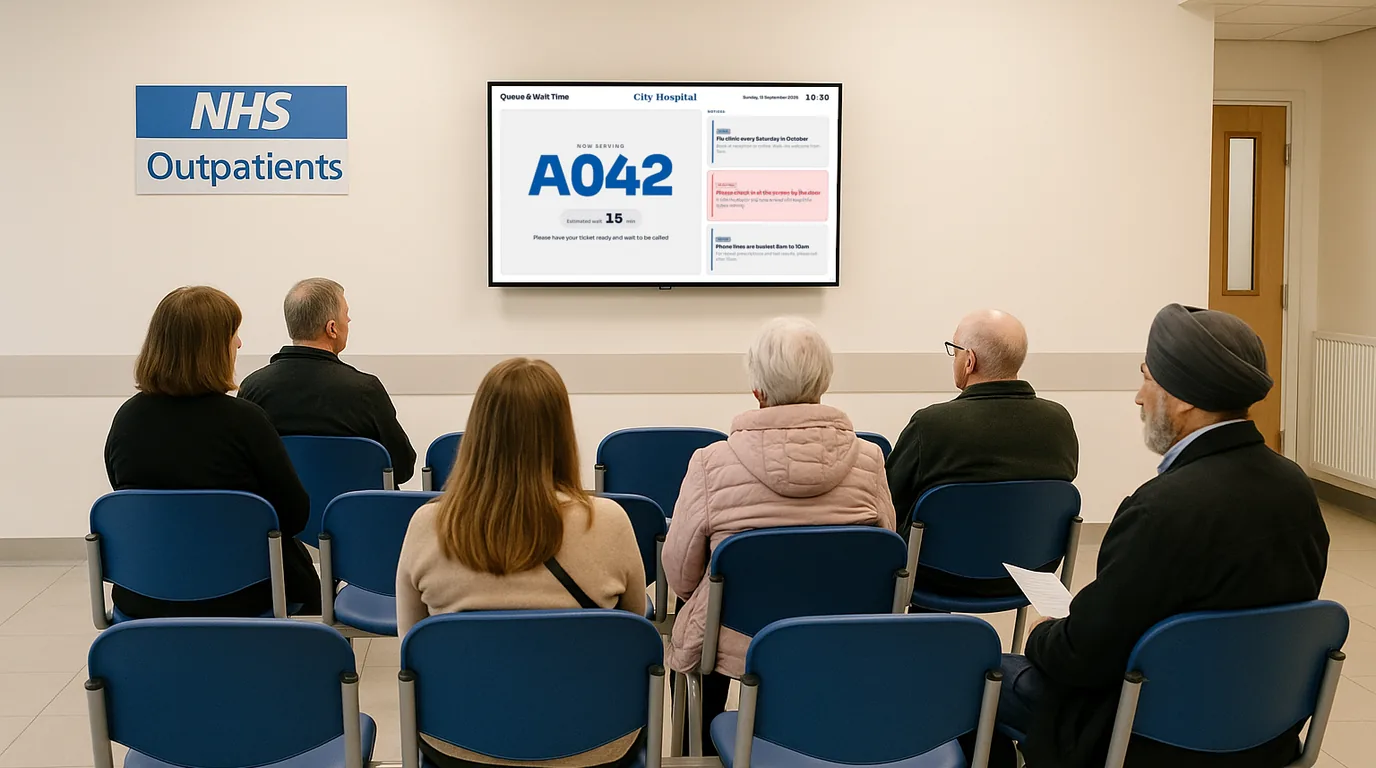
People in a waiting room want two facts: who is being seen now, and how long they have left to wait. Put both on a screen they can see from their seat and the desk gets asked less. This guide covers what to show, where the screen goes, how to keep the wait figure honest, and how to build it in NowBoard today.
What a waiting room screen needs to show
Start with the questions your receptionist hears most. In a clinic, a dental practice, a council office or a busy restaurant door, the list is short and similar:
- Who or what is being seen now.
- About how long the wait is.
- What to do if something changes: you feel worse, you need to leave, you have been waiting longer than the screen says.
- The practical answers: toilets, parking, how to check in, when the pharmacy or the kitchen closes.
Put the first two on screen in large type and rotate the others underneath or between them. Leave out anything a person in the room does not need while they wait.
Now serving
Show a ticket number, a room or a desk. Do not show full names. A number such as A042, or "Room 3", tells the right person to get up and tells everyone else the queue is moving. If you use paper tickets already, use the same format as the ticket.
The wait
Show one estimated wait in minutes, and show when you last changed it. "About 25 minutes, updated 4 minutes ago" is believable. A figure with no time beside it looks abandoned after an hour, even if it is still right. If you see patients in separate clinics or rooms, show a wait for each one.
Where the screen goes
Put it on the wall the seats face, not behind the reception desk. A person sitting down should see it without turning round. Mount it with the centre a little above eye height for someone seated, and check the far corner of the room: if the wait figure is hard to read from the furthest chair, make it bigger or move the screen.
In a long room or an L-shaped area, two screens showing the same content beat one screen that half the room cannot see. Keep the screen away from the door, where people standing to check in block it.
What cuts questions at the desk
The wait figure only reduces questions if people trust it. Three habits keep that trust.
- Update it when it moves by five minutes or more. Small changes do not matter. A clinic that slips from 20 to 40 minutes does, and the room should hear it from the screen before they hear it from each other.
- Say why, when you can. A short notice such as "Running late after an emergency appointment" stops the same conversation at the desk ten times.
- Tell people what to do. "If you have waited more than 15 minutes past the time shown, please speak to reception" gives a clear rule, and removes the urge to check every few minutes.
Give the job to one person per session, for example whoever runs the front desk, and make it part of their routine at the start, after each delay, and when the session ends.
What to rotate alongside the wait
- Opening, visiting or clinic hours for the week, with bank holiday changes.
- Short notices: a flu clinic, a change of entrance, the repeat prescription process.
- A daily fun fact, quote or awareness day, so regulars see something new each visit.
- Guest Wi-Fi as a QR code, if people are likely to wait a while.
Keep the wait figure on screen the whole time if you can, in a fixed part of the Board, with the rotation in the rest of the space. A wait figure that disappears for a minute at a time is the moment someone walks to the desk to ask.
How to build it in NowBoard
Start from the Queue / Wait Time template. It puts a large now-serving number on the left, with the estimated wait in minutes and a short message below it, and the latest three notices from Announcements on the right. It suits a GP reception, a pharmacy counter or a service desk.
If the wait changes through the day and you want the screen to show when it last changed, use Live figures. A Live figures set is a named set of numbers, each with a label, a value and a unit, and a Board can show "Updated 3 min ago" below it. Make a set with two figures, labelled "Now serving" (value A042, or a room name) and "Estimated wait" (value 25, unit min). On a custom Board, add a Live figures block in the "one big figure" style for the wait, and an Announcements block beside it for notices. Values change on screen when you save, and you can edit them from the browser on a phone or a desktop.
If your team already tracks the wait in a Google Sheet, a Data Source can read the sheet on a schedule and fill the Live figures set for you. For several clinics or rooms, Places content holds each one with a status (open, closed, busy, quiet or out of order) and an optional wait in minutes.
Round it out with the Waiting and Visiting Hours template for your hours, Daily fill-ins for something new each day, and the QR Code template for guest Wi-Fi. On Professional and higher, an emergency alert replaces every screen in the Site at once, and Deactivate returns them to the queue.
See queue and wait time screens for more examples, and NowBoard for hospitals for clinics and departments. Per-TV plans are on the pricing page. To see a waiting room Board built from your own clinic list, book a demo.
See it on your own screens
We show you NowBoard with the Boards for your kind of place. Or sign up free.