
Shop window and in-store screens: a how-to for retailers
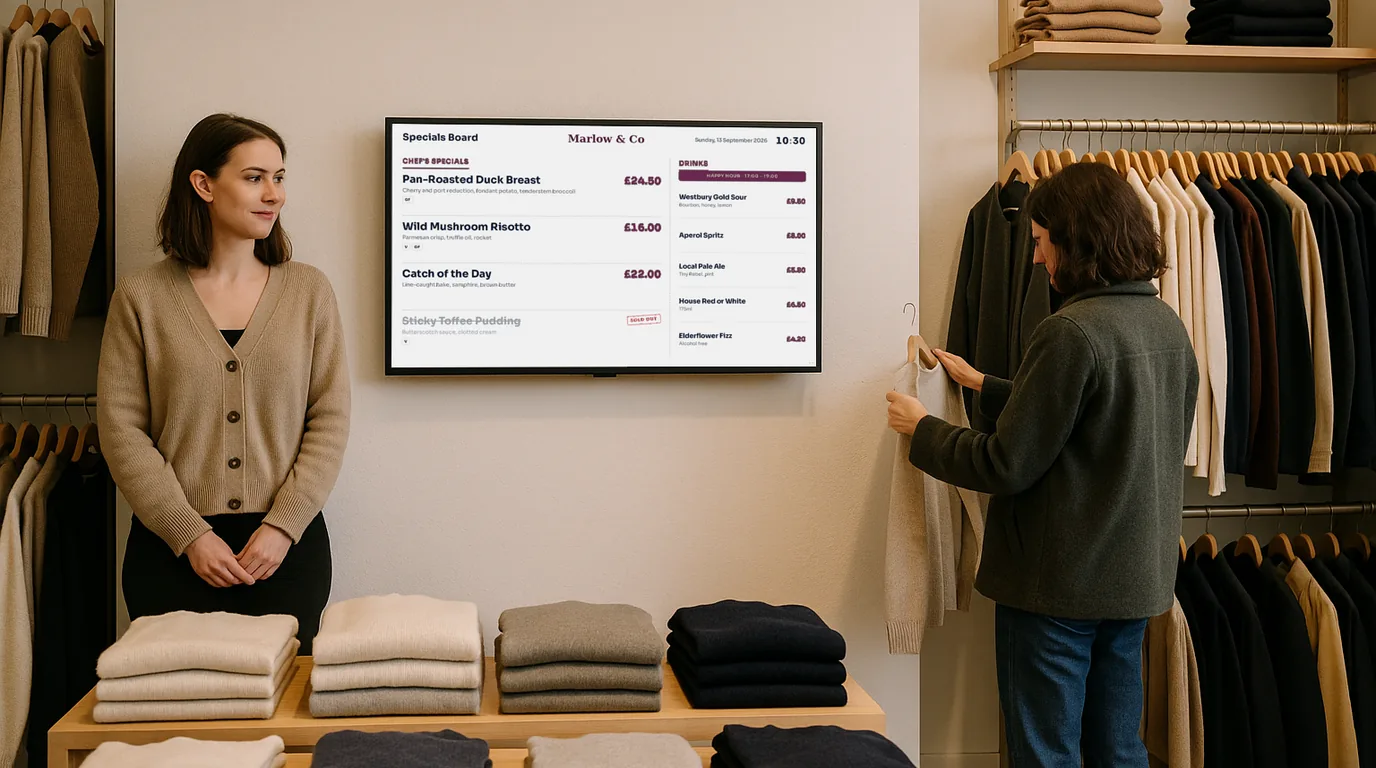
A shop window screen has a few seconds to stop someone on the pavement, and an in-store screen has to sell without getting in the way. This how-to covers where to put each one, how bright a window screen needs to be, and how to set up products with sale prices, reviews, a QR code to buy and offers that change with the time of day.
Step 1: get the window screen right before the content
A normal TV made for a living room looks washed out behind glass on a sunny day. If your window faces the sun for part of the day, look at a high-brightness display sold for shop windows; the specification sheet lists brightness in nits, and window models are built to be far brighter than a home TV. A north-facing window or a deep shop front with an awning gives you more choice.
- Height: put the centre of the screen near the eye line of someone walking past, not up at the top of the glass.
- Distance: stand on the far side of the pavement and check you can read the main line. If you cannot, make the text bigger and say less.
- Orientation: a portrait screen suits a narrow window or a door panel, and it looks more like a poster than a TV.
- Reflections: check the screen at midday and late afternoon. Moving it a few centimetres back from the glass, or angling it, can cut glare.
Keep each Board in the window short. A passer-by gives you a few seconds, so set durations of around 8 to 10 seconds and put one message on each Board.
Step 2: set up your products once
In NowBoard, Products live in named lists, such as "Window" or "This week's offers". One product can sit in several lists. For each product, add a name, a price and photos. To show a sale, add a Was price: the Board shows "was £60, now £45" with a "25% off" chip, worked out for you.
Stock matters as much as price. Set a product to Low stock and enter the quantity left, and the Board shows "Only 3 left". Set it to Sold out, and you can tell the Board to hide sold-out products so the window never advertises something you cannot sell. Valid from and Valid to dates take a product off the Boards the day after a promotion ends.
If you have more than a handful of products, use Import CSV with columns for name, brand, price, was price, stock and photo links. It adds or updates many products at once.
Step 3: add a QR code to buy
Add a Buy link to a product, and the Board shows it as a QR code with a short label such as "Scan to buy". A window shopper can then order after you close. Point the link at the product page on your own site, not your home page, so the customer lands on the thing they saw.
Step 4: show reviews and social links
Create a Review list and paste in your best customer reviews with their star ratings and the name you want to show. Turn on Featured for the ones you most want seen. On the Reviews Board, turn on the overall rating and enter your average score and number of reviews. You can also show a "Leave a review" QR code, which suits an in-store screen near the till better than the window.
A Follow Us Board shows your Instagram, Facebook, TikTok and other accounts, each with its own QR code. Use it in the queue, where people already have their phones out.
Step 5: plan the day in time slots
The people walking past at 8am are not the people walking past at 2pm. On each Channel, add time-of-day slots that swap in a different Playlist for a set period. For example, you could show coffee and grab-and-go items from 07:30 to 10:00, gift ideas from 10:00 to 17:00, and a "Scan to buy" product loop with the Opening Times Board after you close.
Set display hours on the Channel so the window screen sleeps late at night and wakes before the commute. For a one-off message, such as "Late opening Thursday", post an Announcement with a start and end date; it shows on those dates and leaves the screen by itself.
| Screen | What to show | Board |
|---|---|---|
| Window | One product or offer at a time, opening hours after close | Products (One product), Opening Times |
| Entrance | This week's offers, new arrivals | Products (Grid or Spotlight) |
| Till queue | Reviews, social links, add-on products | Reviews, Follow Us, Products |
| Stock room | Rota, targets, staff notices | Announcements |
Mistakes to avoid
- Leaving last weekend's sale in the window. Use Valid to dates and announcement end dates.
- Putting a full product grid in the window, where nobody stops long enough to read it.
- A QR code too small to scan from the pavement. Show it large on a Board of its own.
- Low contrast text over a busy photo. Use Darken the picture on the block's Look tab.
Step 6: let a neighbour pay for a slot
Your window screen reaches everyone who walks past, and the café or hairdresser next door may want those people too. Create an Ad Space, add an Ad Board slot to the window Channel's Playlist and send them the booking page. They choose dates, upload their artwork and pay through a link NowBoard emails them after you approve; the ad plays only once they have paid. NowBoard keeps a commission that depends on your plan, from 30% on Free to 8% on Enterprise. The screens that pay page explains how venues price these slots.
Getting started
The retail page shows the Boards shops use for promotions, opening hours and staff notices. Starter is £10 a month per TV, ex VAT, and the Free plan covers one TV; see pricing for the full list, and hardware for the Players. To see your products on a window Board, book a demo.
See it on your own screens
We show you NowBoard with the Boards for your kind of place. Or sign up free.