
How to set up a care home reception screen for families
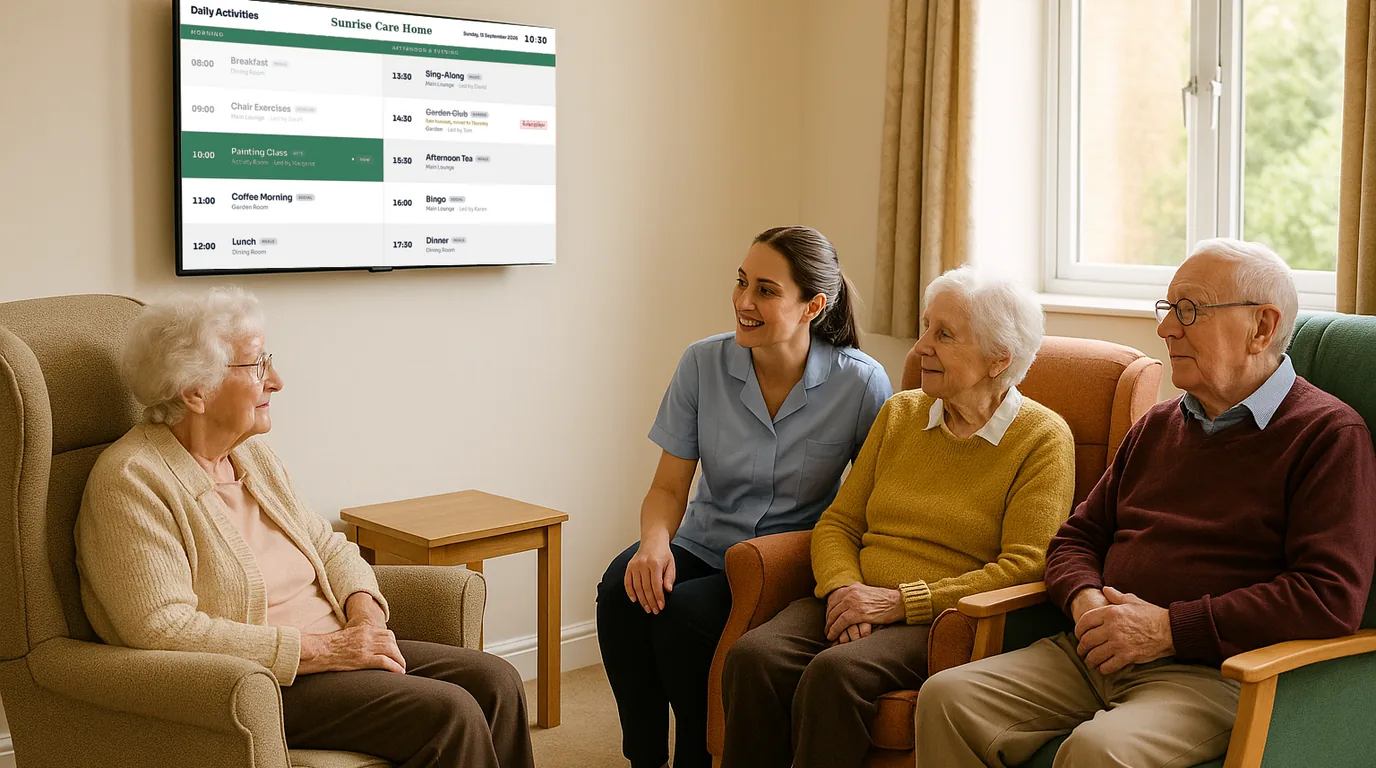
The reception screen is the first thing a family reads when they come to visit. This guide takes you through setting one up step by step: where it goes, what it shows, who keeps it current, and the privacy checks to make before a resident's name or photo appears on it.
Reception needs its own screen
A lounge screen serves residents. A reception screen serves the people who come through the front door: families, friends, visiting professionals and agency staff on their first shift. They stand for a minute while someone answers the door, signs the book or finds a member of staff. That minute is when they read.
Visitors want practical answers. Can I visit now? Who is in charge today? Is lunch being served, so should I wait? Is anything happening this week that Mum would enjoy? A screen that answers those questions saves your team from answering them at the door, and it shows families a home that is organised and busy.
Keep the activity programme in the lounge, where residents use it. Reception gets a shorter, visitor-facing version.
Setting it up, step by step
Pick the wall
Put the screen where visitors stand and wait, not behind the desk where only staff can see it. Next to the signing-in book or the hand gel station works well. Mount it with the centre of the screen at standing eye level, about 1.5 metres from the floor, and check for glare from the front door at the time of day most visitors arrive. A 43 to 50 inch screen suits most entrance halls. In a narrow porch, a portrait screen fits better.
Write the visitor basics first
Start with what every visitor needs on every visit: visiting hours, any protected mealtimes, a reminder to sign in and out, hand hygiene, the guest Wi-Fi and who to ask at the desk. Keep each item to one line. If visiting hours change for an outbreak or for Christmas Day, this is the part you update first.
Show who is on duty
Families often want to speak to the nurse in charge or the deputy manager. A board with a photo, a name and a role for each person on shift today answers the question before they ask it. It also helps agency staff and new starters learn who is who.
Add the warm content
Birthdays, anniversaries, a welcome for a new resident, a thank you to a long-serving carer. Add this week's menu so a visitor can see what their relative will eat. Add photos from the garden party. This is the content families mention when they ring their brother afterwards.
Ask visitors a question
A poll with a QR code lets families take part from their phone. For example, you could ask which day suits a summer fete, or which singer to book again. Families who answer feel involved, and you get a quick answer without a paper survey.
Set the order and the timing
Visitors read for a minute or two, so keep the loop short: four to six Boards, each on screen for 15 to 20 seconds. Put visiting hours first and again halfway through, so nobody waits long to see them.
Give one person the weekly check
Pick an owner, often the administrator or the activities coordinator. Each Monday they check the duty list, add the week's birthdays and remove anything that has finished. It takes ten minutes if the content is set up well.
Privacy before you publish
Everyone who walks through the door reads the reception screen, including contractors and other residents' visitors. Treat it like a public noticeboard.
Check before a name or photo goes up
- You have consent from the resident, or from whoever acts for them, to show their name, birthday and photo.
- You show first names only, unless the resident has asked for more.
- You leave out room numbers and anything about health or care needs.
- Staff have agreed to appear on the duty board with their photo.
- Activity photos do not show anyone who has not agreed to be shown.
How NowBoard does it
Each part of the steps above maps to a ready-made Board template and a type of content. You type the content once, and every Board that uses it updates.
- Visiting hours: the Waiting and Visiting Hours template reads your Opening Times. Add one-off dates as exceptions, such as a closed day or Christmas hours, and the screen changes on that date.
- The basics: the Reception Welcome template shows Info Cards. The Starter cards give you visiting hours, reception, Wi-Fi and safety cards to edit.
- Who is on duty: the Meet the Team template shows a People list with a photo, name, role and two short lines, which you can use for the shift.
- Celebrations: the Celebrations template reads Dates for people. It shows birthdays, anniversaries, welcomes and farewells in the next two weeks, and counts the years for you.
- Menus: the Weekly and Daily Menus templates show a Monday-to-Friday menu. The kitchen can mark a dish sold out from a phone.
- Polls: a Live Poll Board shows the question, a QR code and the results. Each phone votes one time, with no sign-in.
Put these Boards in the Playlist of a reception Channel and set the seconds for each. Display hours let the screen sleep at night and wake before the first visitor. Your team updates the content from the NowBoard Operator App on their phones or from a browser.
The Free plan runs one TV, so you can try the reception screen before you add the lounge and dining room. Paid plans start at £10 a month per TV, ex VAT; see pricing for the full list. For the rest of the home, read our care home signage page, and for reception screens in other buildings, see welcome screens. If you want to see the Boards with your own content, book a demo.
See it on your own screens
We show you NowBoard with the Boards for your kind of place. Or sign up free.