
How to run a staff-only noticeboard screen
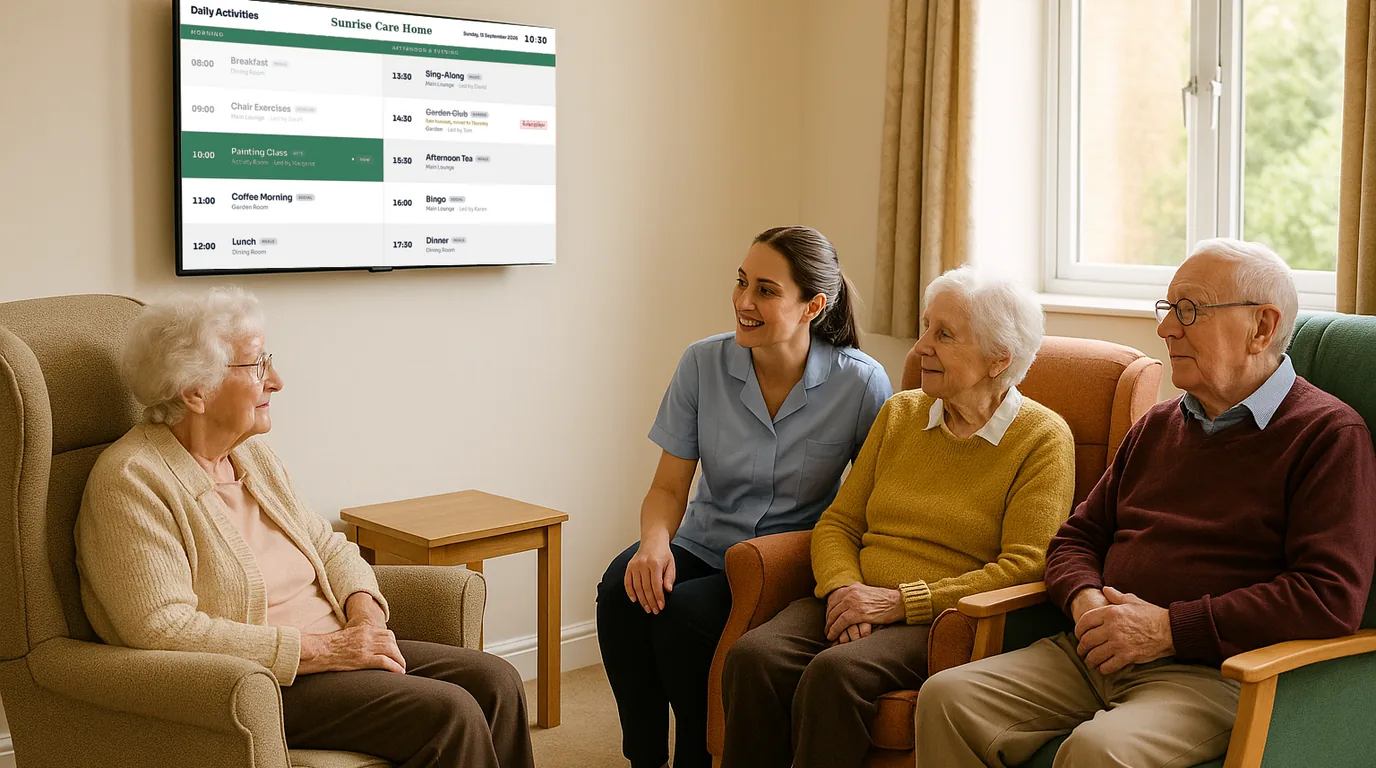
A staff-only screen in the break room or back office reaches the people who never sit at a computer: carers, kitchen teams, cleaners, shop floor staff. This guide covers where to put the screen, what to show on it, who posts what, and a weekly routine that stops it going stale.
What a staff screen is for
A staff screen does three jobs. It tells the shift what it needs to know today, it reminds everyone of what is coming this week, and it thanks people in front of their colleagues. Anything that does not fit one of those jobs belongs somewhere else: the HR system, the policy folder or a conversation.
It does not replace your rota software or your training records. It shows the version of that information that staff need to read in passing.
Where to put it
Put the screen where staff stop for a minute or more: by the kettle, next to the clocking-in point, in the changing room corridor or by the handover desk. Check the spot at shift change, when the room is busiest, and make sure people can read it from where they stand or sit with a drink.
- Keep it out of sight of residents, guests, patients and customers. A screen that shows rotas and staff news should not be visible through a door that the public walk past.
- Avoid a spot opposite a window. Glare in the afternoon makes the text unreadable for the late shift.
- Check power and a network point before anyone drills the wall.
What to show, by how often it changes
Every shift
- Who is on today, with photos, so agency and bank staff can put a name to a face.
- Today's notices: a resident's family visiting, a delivery at 2pm, the lift out of service.
- Safety reminders that suit the shift, for example manual handling before the morning rounds.
Every week
- The rota for this week and next. If your rota system exports a PDF, show that rather than retyping it.
- Training dates, with the room and who must attend.
- Internal vacancies and extra shifts, with a QR code to apply or to tell the manager.
Now and then
- Shout-outs: a compliment from a family, a qualification passed, five years' service.
- Welcomes and farewells for new starters and leavers.
- Policy changes, as a short summary with where to read the full version.
What to keep off a staff screen
- Health, sickness or disciplinary details about any named person.
- Resident, patient or customer personal data.
- Door codes, safe codes and passwords. Staff photograph screens.
- Long policy documents. Nobody reads page four on a wall.
Who posts what
A staff screen with one editor goes quiet when that person is on leave. A screen with ten editors and no rules fills with duplicates. Name an owner for each type of content and a deputy for the owner.
| Content | Owner | When |
|---|---|---|
| Who is on today | Shift lead or deputy manager | Start of each shift |
| Rota | Rota manager | When the rota is published |
| Training dates | Training lead | Monthly |
| Vacancies and extra shifts | Manager | As they open |
| Shout-outs, welcomes, farewells | Anyone, with manager approval | Weekly |
A weekly routine
Monday: load the week
Upload the rota, add this week's training dates and set end dates on anything that only matters this week.
Each shift: check the top line
The shift lead reads the screen at handover and fixes anything wrong from their phone.
Friday: collect the thanks
Ask the team for one shout-out each week and add it. A compliment from a family is worth more on the wall than in an inbox.
Monthly: prune
Remove any Board that nobody has mentioned in a month and try something else in its place.
How NowBoard does it
Give the staff screen its own Channel, separate from any screen the public can see. In the Channel settings, set its visibility to staff only. The Channel plays its own Playlist, so staff notices never appear in the lounge or at reception.
- Who is on today: a People list (photo, role and two short lines, for example the shift) on a Meet the Team Board.
- Notices: Announcements with a priority (Normal, High or Urgent) and an end date, after which they leave the screen on their own.
- The rota: Slides, where each page of a PDF becomes one slide.
- Training: Events, restricted to that Site or Channel.
- Vacancies: Job Vacancies on a We're Hiring Board, with a QR code to apply. A role leaves the screen the day after its closing date.
- Shout-outs, welcomes and farewells: Dates for people on a Celebrations Board.
Shift leads can post and hide announcements from the NowBoard Operator App on their phone, with no desktop needed. Set display hours so the screen sleeps overnight if nobody works then.
See staff noticeboards for more ideas, and care home digital signage for how a care home splits its screens between residents, families and staff. Plans are on the pricing page, or book a demo.
See it on your own screens
We show you NowBoard with the Boards for your kind of place. Or sign up free.