
Restaurant menu screens: 8 mistakes and how to fix them
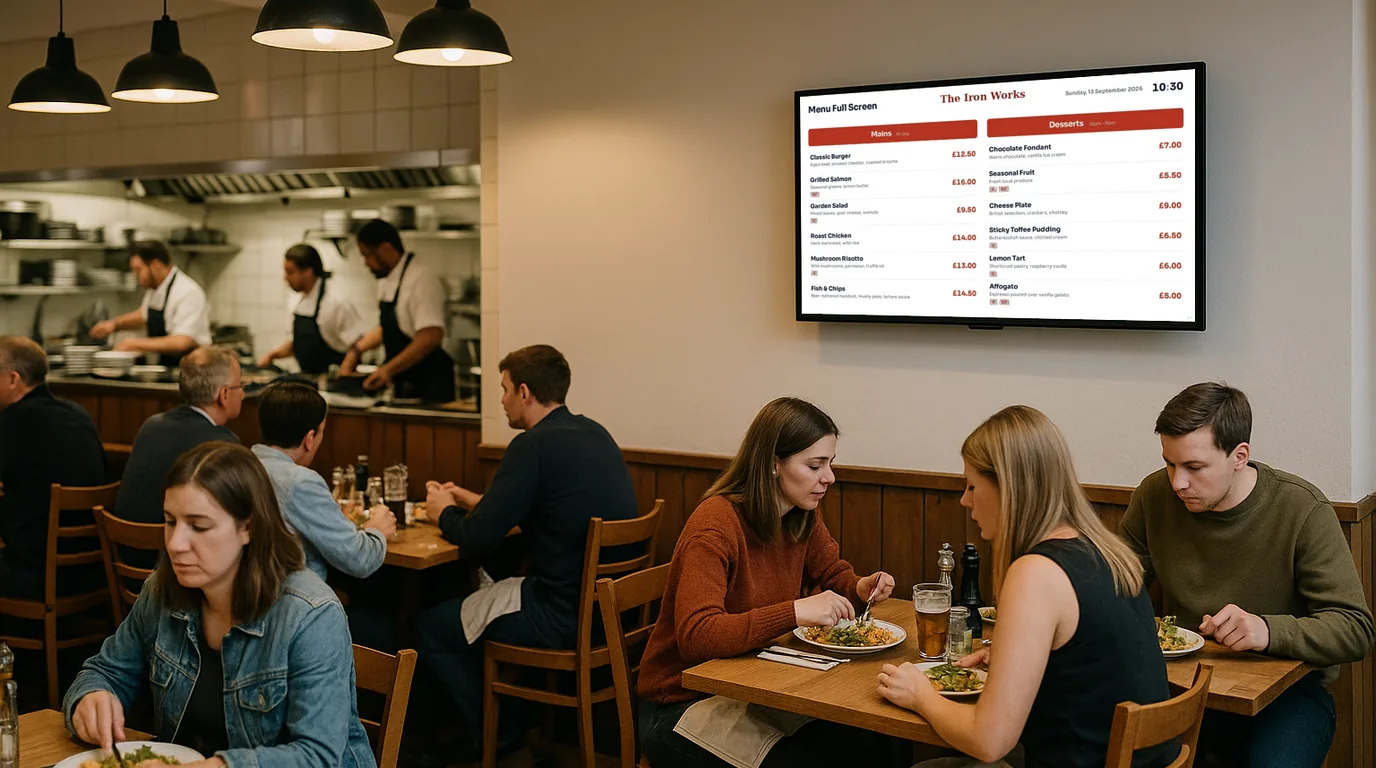
A menu screen in a restaurant can save your floor staff a lot of repeated answers, or it can sit on the wall showing last week's prices. The difference comes down to a handful of decisions you make at the start. Below are eight mistakes to avoid, with the fix for each.
1. Copying the printed menu onto the screen
The quickest way to fill a screen is to export the printed menu as an image and put it on the TV. The result has small type, long descriptions and forty dishes nobody can read from the door. A printed menu works at arm's length. A screen works at three to five metres.
The fix: show less. Split the menu across two or three Boards, one per course or section, and cut each description to a few words or none. Your printed menu and your staff still carry the detail. The screen's job is to help guests choose and to show what has changed.
2. Making the screen a picture of the menu
If the menu on screen is an image, every price change means a new image. A new image means a designer, or a manager with a laptop after close. So prices change late, and the screen disagrees with the till.
The fix: keep the menu as data: sections, items and prices you edit in one place. Change the price of the burger once and every screen showing that menu follows. If your menu already lives in a spreadsheet, import it from a CSV file instead of typing it again.
3. Taking sold-out dishes off the screen
It seems tidy to delete the lamb when the kitchen runs out. Guests who saw it on Instagram still ask for it, and a dish that vanishes looks like a mistake. The opposite error is worse: leaving it up with no mark, so a guest orders it and the server walks back to say no.
The fix: mark the dish sold out and leave it visible. Guests see it exists, see it has gone and choose something else before they order.
4. Leaving dietary information to memory
Guests with a dietary need scan the menu for the dishes they can eat. If the screen shows names and prices only, every one of them asks the server, and the server checks with the kitchen.
The fix: add short dietary badges to each item, for example V, VG, GF, DF and N, and put a small key on the Board. The badges point guests to the right part of the menu. Keep your full allergen information and your staff process as they are; the screen supports them and does not replace them.
5. One menu, all day
A restaurant that serves breakfast, lunch and dinner often leaves one menu on screen from open to close. At 7pm a guest reads the breakfast section and wonders if the eggs are still on.
The fix: give each service its own content and let the screen change at set times. Breakfast until 11:00, lunch from 12:00 to 15:00, dinner from 17:30. The person who opens and the person who closes should not need to touch the screen for this.
6. Putting the screen where nobody decides
A screen behind the pass helps the kitchen. A screen above the bar helps people at the bar. Neither helps the guest waiting at the door to be seated, who is the person deciding whether to stay.
The fix: stand where your guests stand. For walk-ins, that is the entrance and the waiting area. For counter service, it is the queue. Avoid the wall opposite a big window, where afternoon glare wipes out the picture, and keep the bottom edge above head height so a queue does not block it.
7. Rotating too fast, or too much
A Playlist with ten Boards at eight seconds each looks busy. A guest who wants the mains has to wait more than a minute for them to come round, and gives up.
The fix: keep the menu on screen longer than anything else, for example 30 to 45 seconds, and keep the rotation short. One menu Board, one event and one offer is plenty for a dining room screen. Give the specials their own screen if they matter enough.
8. Nobody owns the updates
The screen goes up, the manager who set it up goes on holiday, and the specials from a fortnight ago are still on the wall.
The fix: name a person per shift. The person who runs the pre-service briefing checks the specials and the sold-out items, from their phone, before doors open. Make it part of the same checklist as the float and the fridge temperatures.
The short version
- Fewer dishes, bigger type, short descriptions.
- Menu as data, never as a picture.
- Sold out stays visible, with a mark.
- Dietary badges and a key on every menu Board.
- A different menu for each service, on a timer.
- Screens where guests decide, out of the glare.
- Long durations, short rotations.
- One named person per shift.
How NowBoard handles each of these
NowBoard keeps your menu as content: sections, items, prices and dietary badges. Every Board that uses the menu shows the same data, so a price edit reaches each screen when you save. You can import items from a CSV file. On a custom Board, the Menu block can show only certain sections or dietary labels, limit the number of items in each section and hide items that are not available, which lets you split a long menu across Boards.
Each item has a Sold out switch, which keeps it on screen with a sold-out mark, and an Available switch, which hides it. Staff change both from the NowBoard Operator App on a phone. Time-of-day slots on a Channel swap in a different Playlist for each service, and you set each Board's duration in seconds inside the Playlist. Display hours put the screens to sleep after close.
For more on running a dining room screen, see NowBoard for restaurants and the guide to digital menu boards. Plans and per-TV prices are on the pricing page. If you want to see your own menu on a screen, book a demo.
See it on your own screens
We show you NowBoard with the Boards for your kind of place. Or sign up free.