
A library digital noticeboard: what to show and how to keep it current
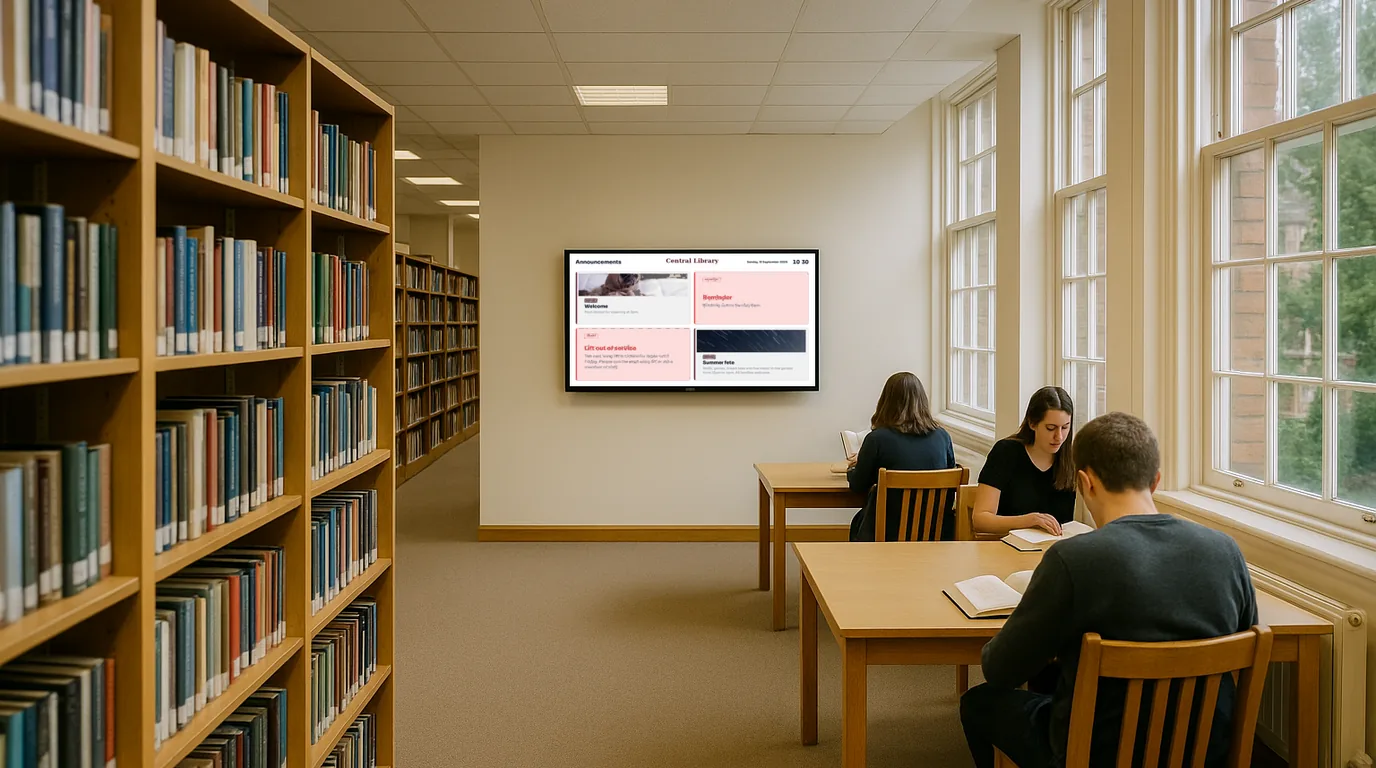
A library noticeboard carries more than most: opening hours, closures, storytime, study room bookings, council notices and the posters local groups hand in at the desk. This guide covers what to put on a library screen, how to keep hours and events correct across a branch network, and where to mount the screens so visitors read them.
Sort the notices before you design anything
Take everything off the cork board and sort it into piles. In most libraries the piles look like this:
- Hours and closures: the weekly pattern, bank holidays, a closure for staff training.
- What's on: storytime, homework club, digital skills drop-ins, author talks, reading groups.
- Rooms: study rooms and the community room, and who has them today.
- Community notices: local groups, volunteering, council services, health campaigns.
- Books: new arrivals, staff picks, a themed display.
Each pile becomes its own kind of content in NowBoard, and each has its own way of staying current. A poster for a talk that finished last month stays on a cork board until somebody removes it. On a screen, you give the notice an end date and it goes.
Opening hours that match the door
Set your hours once under Opening Times. Each day has an open time, a close time and an optional note ("Late opening"). Advanced mode lets a day have several sessions, which suits a branch that closes for lunch.
The Exceptions section holds the dates that break the pattern. Add a closure for a training day weeks ahead, with a note explaining it. The UK bank holidays button adds New Year's Day, Christmas Day and Boxing Day for the current year; add Easter and the May and August bank holidays by hand. The Opening Times Board shows today's hours at the top and the full week below, so a visitor arriving on a Sunday sees when you open next.
Events where the audience walks past
Add each session as an Event with a start time, a room and a category: Children, Adults, Digital skills, Reading groups. On a Board, the Event filter shows only the categories you pick, so the screen in the children's section can list storytime and Lego club while the entrance screen shows the full week.
If your events team keeps a Google Calendar or Microsoft 365 calendar, a Calendar feed can copy it into an Events list about every 15 minutes, with repeats for the next 90 days. Staff keep using the calendar they know.
For example
You could put a portrait screen at the end of the children's shelves, at a height a parent reads standing up, showing this week's Children events. When a volunteer cancels Thursday's craft session, staff edit or unpublish that one Event and both screens change.
Study rooms and the community room
Rooms and bookings holds a list of rooms with their capacity and floor, and the bookings in each. Staff can type bookings, or each room can sync from its own calendar feed. A Board can show a panel per room with free or in use and today's bookings, which saves visitors a trip to the desk to ask.
Community notices without the clutter
Use Announcements for community notices. Each one has a title, an optional message and image, a priority (Normal, High or Urgent) and a date range. The End date is the expiry: after it, the notice leaves the screens and stays in your list for next year.
Set a rule for groups that hand in posters. For example, you could accept a short title, two lines of text and a link, and turn the link into a QR Code so visitors can scan it for the details. A tidy screen of three-line notices reads better than a scanned A4 poster shrunk to fit.
New arrivals and staff picks
Photograph the covers on the new arrivals shelf and add them to a Photo Album, or export your monthly reading list from PowerPoint, Google Slides or Canva as a PDF and upload it as Slides. Each PDF page becomes one slide, shown one at a time. Swap the PDF each month and the old pages go.
Where to mount library screens
- Entrance: facing the door, visible before the visitor reaches the desk. This screen carries hours, today's events and urgent notices.
- Children's area: events for families, at adult eye level so parents read it while children browse.
- Study area: room availability and quiet zone reminders. Avoid video here, because movement in the corner of the eye distracts people who are working.
- Community room door: today's bookings for that room.
Set display hours on each Channel to match your opening hours, so screens sleep when the building closes.
Running several branches
- Make each branch a Site, with Channels for its entrance and children's area.
- Restrict an Event to one Site or Channel so it shows only at the branch that runs it.
- On the Professional plan and higher, a Takeover sends a service-wide notice to every branch at once, now or at a set time.
- Emergency alerts (also Professional and higher) switch screens at one Site or across the service to an evacuation or closure message.
Cost and next steps
The Free plan covers one TV with no card and no expiry, enough for the entrance screen of a single branch. Paid plans start at £10 a month per TV, ex VAT; the pricing page has the details. For ready-made library Boards, see library digital signage and digital noticeboards. To plan screens for a branch network, book a demo.
See it on your own screens
We show you NowBoard with the Boards for your kind of place. Or sign up free.