
How to replace a cork noticeboard with a screen in seven steps
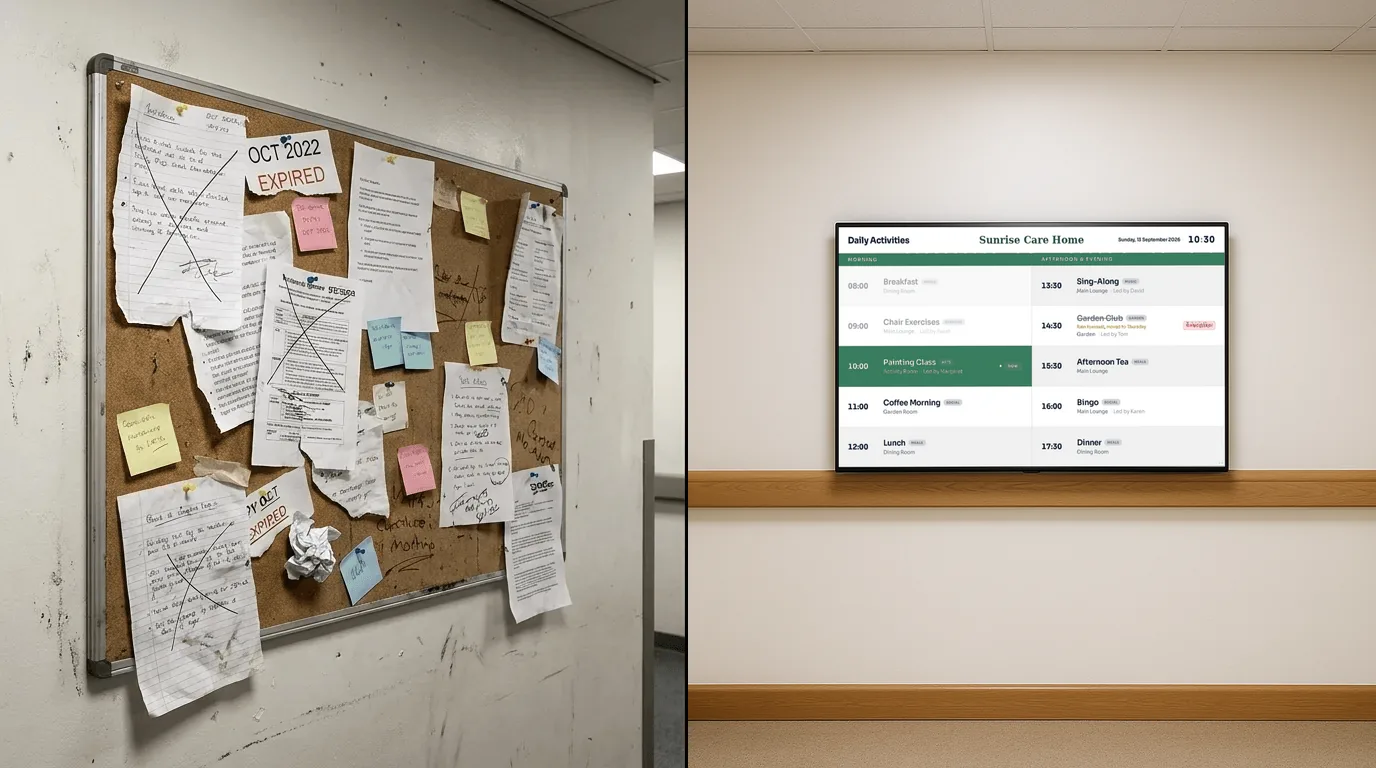
Swapping a cork board for a screen takes a day of work spread over two weeks. Most of that day goes on deciding what to keep, not on the screen. Follow these seven steps in order and the new screen starts with less on it than the old board, and stays that way.
Before you start
You need the screen's location agreed, a power socket and a network point near it, and one person who will own the screen after launch. Leave the cork board on the wall until step 7. Staff and visitors need a week to learn where the information has moved.
The seven steps
Photograph and list everything pinned up
Take a photo of the board, then write every item on a sheet with three columns: what it is, who pinned it, and the date it stops mattering. Include the items half-hidden under other items. On a busy board you will find duplicates, out-of-date events and notices nobody can explain.
Sort every item into four piles
Go through the list and mark each item:
- Bin: past events, expired offers, anything with no owner.
- Screen: anything with a date, a time or a deadline, and anything that changes each week.
- Stays on paper: legal notices you must display on paper, and anything people need to read closely or tear a strip from.
- Elsewhere: long documents that belong in a folder or on your website, with a QR code on the screen pointing to them.
Expect the bin pile to be the biggest.
Group what moves into a few Boards
A cork board mixes everything; a screen works better as a short rotation. Sort the "Screen" pile into four or five groups, for example: opening hours, this week's events, notices, community information and a welcome. Each group becomes one Board.
Give every notice an end date
The cork board filled up because nothing ever came down. Before any notice goes on the screen, decide when it stops. A coffee morning ends on the day itself. A road closure ends when the works do. If nobody can name an end date, set one four weeks out and review it then.
Decide who updates what
Write down one owner for each Board and one deputy. Decide how outside groups get a notice on the screen: by email to the owner, a form at the desk, or a set day each week. Tell regular groups the route before launch, so their notices reach the owner and not the desk.
Run the first week side by side
Put the screen up next to the cork board. Pin a single sheet on the cork board that says "Notices have moved to the screen". Read the screen every morning for a week from where people stand, and fix anything too small, too long or on screen for too short a time.
Take the cork board down
At the end of the first week, remove the board. If you leave it up, people pin things to it again and you run two noticeboards.
Mistakes to avoid
- Scanning every A4 poster and showing it full screen. Posters made for paper have small text and too many words for a screen.
- Twelve Boards in the rotation. Someone waiting for the one they need sees it once every few minutes.
- No owner. The screen ends up with last summer's events, the same way the cork board did.
- Moving notices that the law or your landlord says must stay on paper.
How NowBoard handles each pile
Each group from step 3 maps to a content type in NowBoard. You type the information once, and every Board that uses it updates when you change it.
- Notices: Announcements, each with a start date, an end date and a priority. After its end date, a notice leaves the screen without anyone removing it, and it stays in your list to use again.
- Opening hours: Opening Times, with a weekly pattern and exceptions for bank holidays and one-off closures, shown on an Opening Times Board.
- Events: Events with a date, a time and a room, on a Listings or Schedule Board.
- Community information and long documents: QR Codes that link to a web page or a PDF, and Info Cards for short facts such as the Wi-Fi details.
- Posters you want to keep: Media for images, or Slides for a PDF, where each page becomes one slide.
Add the Boards to the Channel's Playlist and set how many seconds each one stays on screen. Staff can post or hide an announcement from the NowBoard Operator App on a phone. The Free plan covers one TV with no expiry, which suits a single noticeboard.
In short
- List everything, bin most of it, and move only what has a date or changes often.
- Give every notice an end date and every Board an owner.
- Run the screen beside the board for a week, then take the board down.
See digital noticeboards for more examples, and library digital signage for how a library splits hours, events and notices across its screens. Paid plans are on the pricing page, or book a demo.
See it on your own screens
We show you NowBoard with the Boards for your kind of place. Or sign up free.