
How to show Google Calendar or Outlook on a TV screen
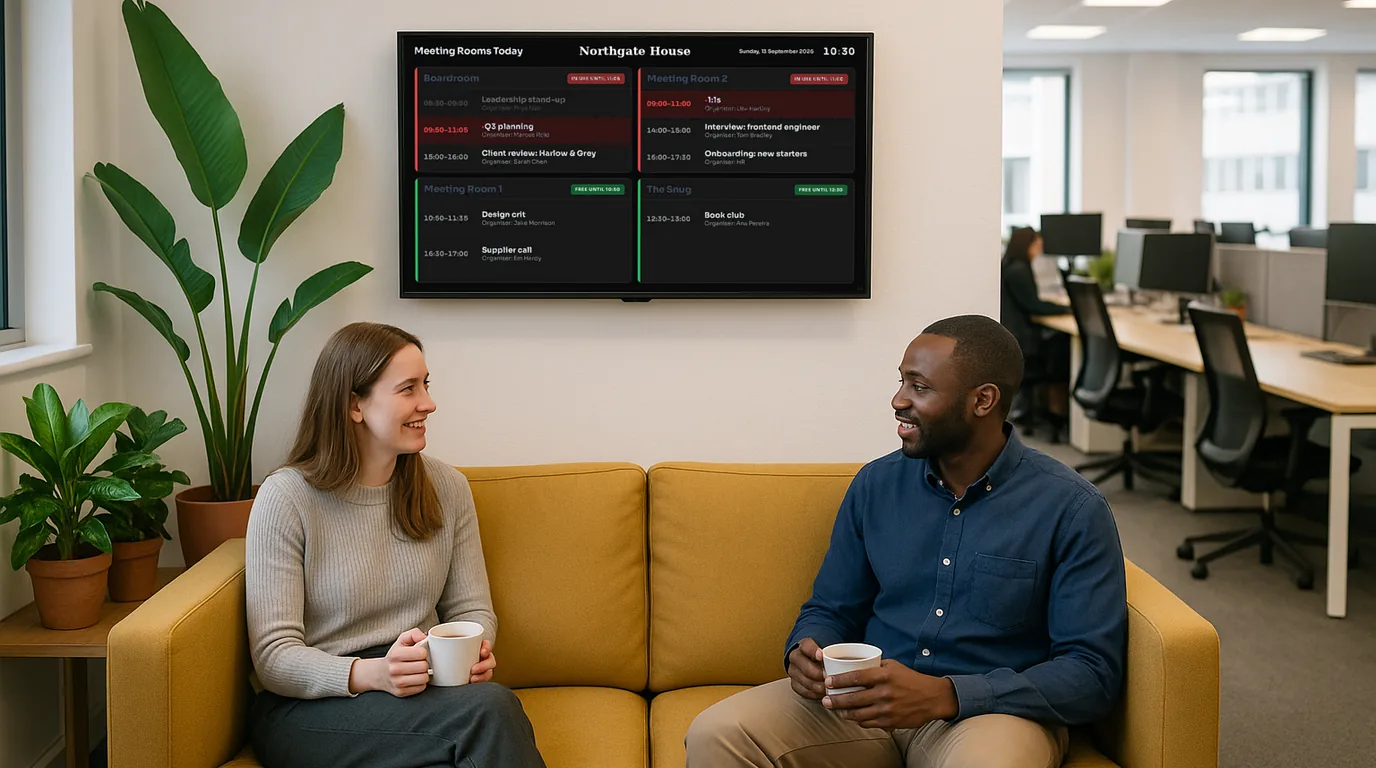
Your team already keeps its bookings, classes or events in Google Calendar or Outlook. This guide covers four ways to put that calendar on a TV, which view suits which screen, and how to keep the screen right without copying events across by hand.
Start with the question the screen answers
A calendar on a TV is read from across a room, for a few seconds, by people who did not make the bookings. Before you choose how to show it, write down the one question each screen answers.
- Outside a meeting room: is this room free, and when is it next booked?
- In reception: which room is my meeting in?
- In a gym or school corridor: what is on today, and is it still running?
- At a venue entrance: what is coming up this week and this month?
Each answer needs a different view. A month grid that works on a laptop is hard to read on a corridor TV.
Four ways to show a calendar on a TV
1. A computer plugged into the TV
Open Google Calendar or Outlook in a browser on a laptop or mini PC, plug it into the TV and make it full screen. It costs nothing if you have a spare computer.
The catches: sign-ins time out, updates and pop-ups appear on the screen, the text is sized for a desk, and anyone passing can see every event detail. If the computer restarts, someone has to sign in again.
2. The browser on a smart TV
Some smart TVs have a web browser. It has the same problems as a computer, and most TV browsers are slow and turn off after a while.
3. A digital wall calendar device
Touch-screen wall calendars are made for one family kitchen. They work well there, but each one is a separate device with its own account, and most are not built for a reception TV or ten screens across a building.
4. Digital signage that reads the calendar
Signage software can read a calendar's iCal address and show the events in a layout made for a TV: large type, today first, now and next. The calendar stays where people make changes, and the screen follows it. You can also show other things on the same screen, such as notices or a welcome message.
Choose the right view for each screen
- Now and next for one room. The current booking, the next booking and whether the room is free. Readable from the corridor.
- Today, all rooms for reception. One line for each room or booking, with the time and the room name.
- Today's timetable for classes and sessions. Show what is on now first, and mark a cancelled class clearly, not just deleted.
- Upcoming events for an entrance or a noticeboard screen. The next few weeks, with dates in words.
Avoid the week and month grids for any screen read from more than a few metres away. The text gets too small to read.
Get the calendar address
Most calendar apps can give each calendar an iCal address: a link that other software can read.
- Google Calendar: open the calendar's settings, go to Integrate calendar and copy the secret address in iCal format.
- Outlook and Microsoft 365: in Outlook on the web, go to Settings, Calendar, Shared calendars, publish the calendar and copy the ICS link. If you cannot publish, your IT administrator may have turned it off.
Treat the secret address like a password. Anyone who has it can see the events.
Mistakes to avoid
- Putting a personal calendar on a public screen. Make a shared calendar that holds only what the screen should show.
- Writing private details in event titles. "Disciplinary: J. Smith" will be on the reception TV. Use the room and the time, and keep the details in the description.
- Showing a month grid on a corridor TV.
- Keeping a second copy by hand. If people change the calendar and someone retypes it on the screen, the screen will be wrong by the afternoon.
How NowBoard does it
In NowBoard, a calendar feed reads any Google Calendar, Outlook or iCal address. You choose where its events go: a Room (its bookings), a Timetable (classes and sessions) or an Events list. Then you put a Board that shows that Room, Timetable or Events list on your screens.
- NowBoard checks each calendar about every 15 minutes, or at once when you press refresh.
- It copies the title, the start and end times, the place and the description, including repeating events.
- It only reads the calendar. It never changes it.
- Events you type in by hand stay as they are, next to the ones from the calendar.
The digital calendar display page shows the Boards. For a sign beside each door, see meeting room displays. Calendar feeds come with the Starter and Professional plans; see pricing, or book a demo and we will show your own calendar on a screen.
See it on your own screens
We show you NowBoard with the Boards for your kind of place. Or sign up free.