
Wedding venue screens: welcome boards, table plans and photo walls
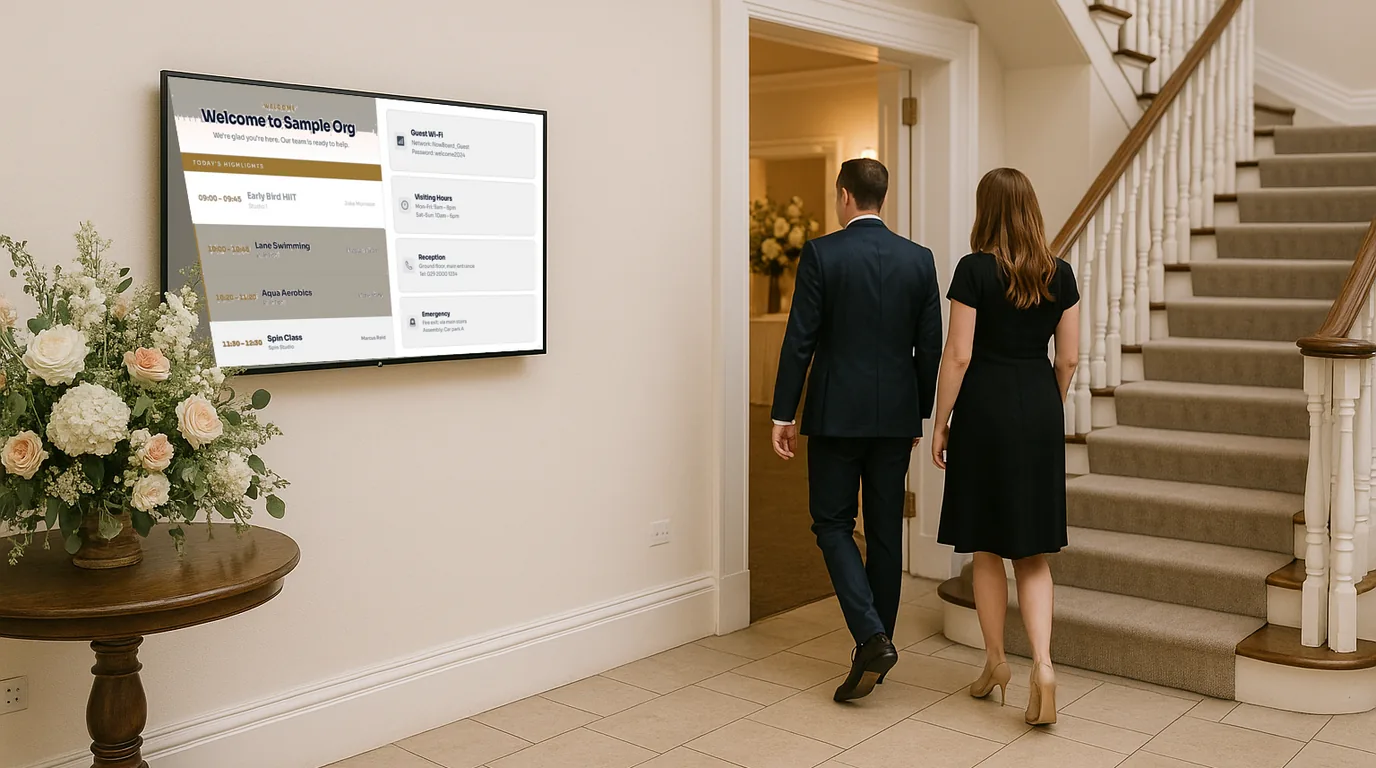
A wedding venue's screens have to feel personal to each couple and still be quick for your team to reset before the next one. This how-to sets up a welcome board, the order of the day, a table plan and a guest photo wall once, then shows how to switch the whole set to the next wedding in a few minutes.
Where the screens go
Most venues need three places covered. The entrance hall greets guests as they arrive and points them to the ceremony. The drinks reception area carries the order of the day and the table plan, because that is where guests stand and wait. The bar or evening room shows photos once the formal part of the day is over.
A portrait screen on a floor stand beside the entrance door looks like an easel sign and takes up less floor than a landscape one. In the drinks area, put the table plan on two or three screens spaced apart, so guests do not crowd one corner. Mount the screens high enough to read over a group, and keep cables taped down or behind furniture where guests in heels will walk.
Set it up once
Make the welcome board
Create a Board from the Welcome template with your venue's logo and colours. Add the couple's names, the date and a short line such as "Ceremony in the Garden Room at 2pm". Add a Countdown with the target set to the ceremony time and a subtitle like "until we begin". Set the Finished text to a message you would be happy for guests to see, or turn on Hide when finished so it goes off the Board.
Enter the order of the day
Add each part of the day as an Event: ceremony, drinks, wedding breakfast, speeches, first dance, evening food. Give each one a start time and a room. A Schedule Board then shows the timeline in order. On a custom Board, the Events block can also highlight the event that is on now, so guests see where the day has got to.
Add the table plan
Most couples or planners send the table plan as a PDF or an image. Save it as a PDF and add it to Slides, where each page becomes a slide, or upload the image to Media and show it on a Slideshow Board. For a long guest list, split the plan by surname across two or three pages so the type stays large.
Create a guest photo wall
Under Guest photos, select New guest wall and name it, for example "Evening photo wall". Guests scan a QR code with their phone and send a photo, with no account or app. You approve each photo before it shows on a Board, and NowBoard removes the GPS data from every photo. Add the Guest photos block to a Board; it shows the photos as a grid or a slideshow, with the QR code beside them.
The wall has a "Show photos at once" setting that skips approval. Leave it off at a wedding, where you do not know every guest.
Build a Playlist for each space
Each screen location is a Channel with its own Playlist. The entrance Channel plays the Welcome Board and a directions Board. The drinks Channel rotates the order of the day and the table plan. Set a time-of-day slot on the bar Channel from, say, 19:30 to 23:30, and give that slot a Playlist with the guest photo wall and the evening schedule. NowBoard swaps it in at 19:30 and back again at 23:30.
On the day
Your coordinator does not need a laptop. In the NowBoard Operator App, they post an Announcement for anything unplanned, with a start and end time so it goes away by itself. If rain moves the drinks indoors, they change the room on the drinks Event and every Board that shows it updates. Someone on your team should open the guest wall once an hour to approve photos, or new photos will not reach the screen.
Mistakes to avoid
- Spelling a name wrong. Open the Board's preview and send the couple a screenshot to approve a week before.
- Leaving the last couple's names in a Board you forgot to change. Keep a list of every Board that carries names.
- Putting the table plan on the screen by the door, where guests stop and block the entrance.
- Showing guest photos before the speeches, when guests should be watching the room.
Switch to the next wedding
Back-to-back weekends are where the set-up pays off. Before the first wedding, duplicate each Board with "Same design" so you have a clean master copy that never carries a couple's names. For each new couple, duplicate the masters again, change the names, date and countdown, and enter the new Events. Then swap the new Boards into each Channel's Playlist.
On Professional and higher plans, you can schedule a Takeover with a start and an end, so the next couple's Playlist appears on the screens at a set time on the morning of their wedding without anyone pressing a button. For the photo wall, turn off "Take new photos" when the night ends, then make a new wall for the next couple. When you upload a couple's own photos to Media, set Auto-delete to 30 or 90 days so they do not sit in your library for years.
How NowBoard fits a wedding venue
The wedding venues page shows the Boards venues use most, and the welcome screens page covers greeting guests at the door. See pricing for what each plan includes, and hardware for the Players. To see the photo wall and the evening slot working, book a demo.
See it on your own screens
We show you NowBoard with the Boards for your kind of place. Or sign up free.