
How to make a digital menu on a TV
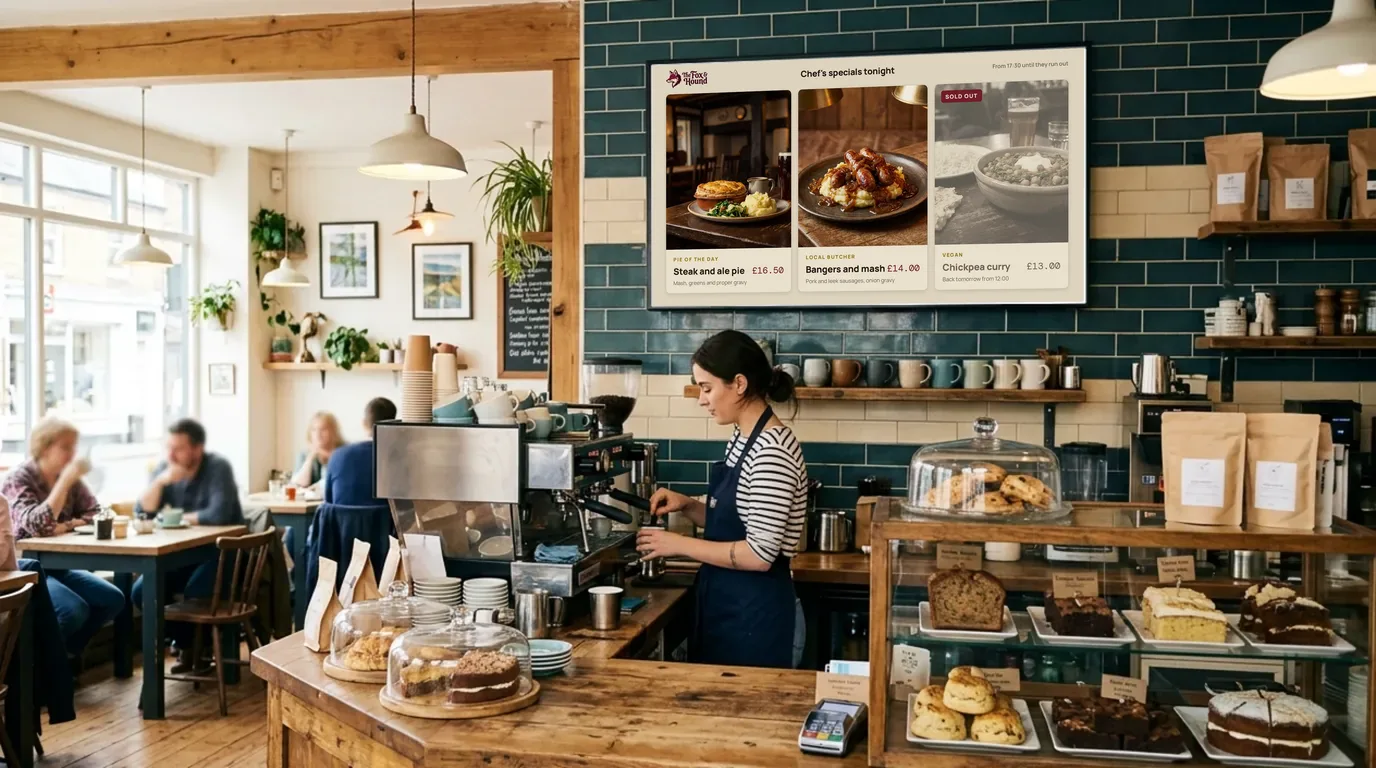
You can make a digital menu on a TV you already have in about half an hour. This guide shows how, in five steps: sign up, pick a menu template, add your dishes, connect the TV and set the lunch and dinner times. It works for a café counter, a pub bar or every restaurant in a group.
What you need
You need a TV with an HDMI port, a Wi-Fi or wired internet connection, and one way to run NowBoard on the TV:
- The NowBoard Player App on a Google Play Certified Android TV or Google TV device.
- The NowBoard Windows App on a Windows PC connected to the TV.
- Google Chrome on a laptop or small PC connected to the TV.
- A NowBoard Player or Player Pro, which you plug into the HDMI port (UK only).
Each TV needs a Player Licence. The hardware page compares the options. If you are not sure which TV to use, the digital signage screens page explains what to look for.
Sign up free
Create a NowBoard account with your email address. You do not need a card. The Free plan runs 1 TV with up to 5 Boards, with no end date, so you can try the menu on the counter before you decide.
Pick a menu template
Open Templates and choose a menu. The Menu template shows the full menu in sections, with a price and dietary badges on each row. The Weekly and Daily Menus template shows a menu for each day, or for today only. Choose landscape or portrait to match the TV on your wall.

Add your dishes and prices
Type each dish, a short description, the price and its dietary badges. Group them in sections such as starters, mains and desserts. On Starter and above you can fill the menu from a Google Sheet, a hosted CSV file or an API instead, and the TV follows the sheet. Keep descriptions short: the screen needs only enough words to choose.

Connect the TV
Start the player on the TV. It shows a QR code and a pairing code. Scan the QR code with your phone, or type the code into NowBoard, and choose what the TV shows. The menu appears on the TV.

Set the lunch and dinner times
Make a second Board for dinner, then put both Boards in a Playlist and give each one its times. For example, you could show the lunch menu from 12:00 to 15:00 and the dinner menu from 17:00. Time-of-day Playlists are on every plan, including Free. To show a Board on one date, such as a Christmas menu, use Scheduled Boards on Professional.
That is the whole set-up. From now on, you change the menu on your phone and the TV follows. If a dish sells out, mark it sold out and it stays on screen with a mark, so guests stop asking for it. For more help with the layout, read the digital menu board design guide.
Other ways, and where they stop working
There are other ways to put a menu on a TV. They are fine for a menu that never changes.
- A USB stick of images. Make the menu as a picture and play it from the TV's USB port. It costs nothing, but every price change means a new image and a walk to the TV. Many TVs do not start the slideshow again on their own after a power cut.
- A slideshow from a laptop. This works until the laptop sleeps, updates or goes home with someone. There is no schedule for lunch and dinner.
- Casting from a phone. The menu stays on screen only while the phone casts. When the phone leaves the building, the menu goes with it.
None of these lets you change the menu from somewhere else, or switch it by time of day. That is the gap a menu board app fills. See the digital menu boards page for everything a NowBoard menu can do, or the get started guide for the set-up in more detail.
Questions
Can I make a digital menu on a TV for free?
Yes, on one TV. The Free plan runs 1 TV with up to 5 Boards, with no card and no end date. You need the TV and a device to connect it. To add more TVs, choose Starter at £10 per TV a month ex VAT.
Do I need a smart TV?
No. Any TV with an HDMI port works. Connect a Google Play Certified Android TV or Google TV device with the NowBoard Player App, a Windows PC with the Windows App, a computer with Google Chrome, or a NowBoard Player in the UK.
How do I change the menu from my phone?
Open NowBoard on your phone, sign in and edit the dish or the price. Every TV that shows that menu updates within seconds. You can also mark a dish sold out the same way.
Can the menu change at lunch and dinner?
Yes. Put the lunch and dinner Boards in a Playlist and set the times each one plays. The TV changes on its own. Time-of-day Playlists are on every plan, including Free.
See it on your own screens
We show you NowBoard with the Boards for your kind of place. Or sign up free.